
Scott International Procedures
April 1, 2026
4.3+
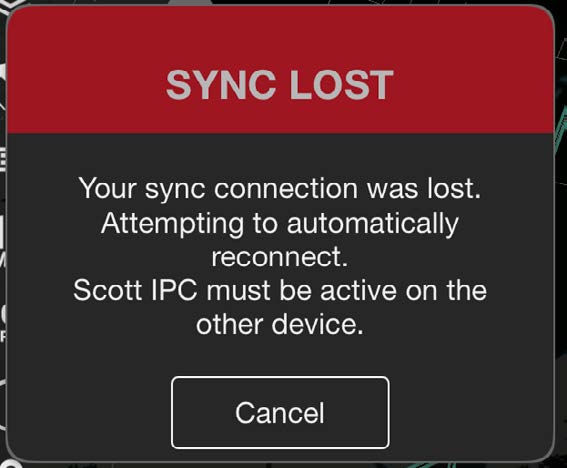
Should the Primary and Secondary iPads unintentionally disconnect, one or both of the iPads will flash a Sync Lost message. The Sync System will automatically attempt to reconnect. Upon reconnection, the Sync Lost message will dismiss, and the wait spinner will transition back to Synced Primary or Synced Secondary.
Progressive troubleshooting steps:

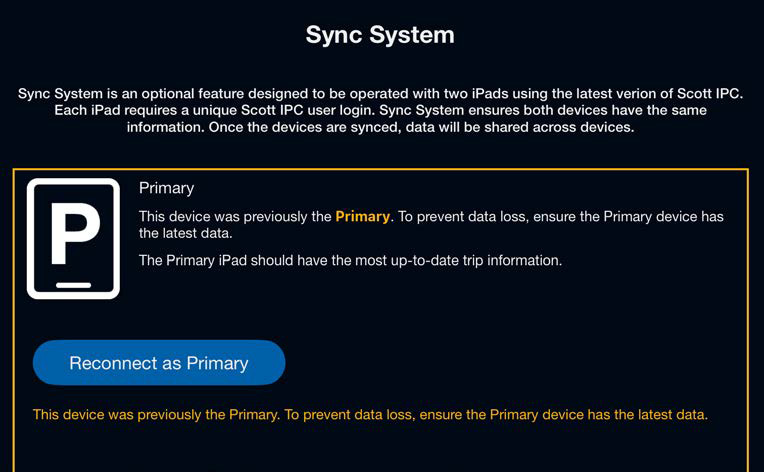
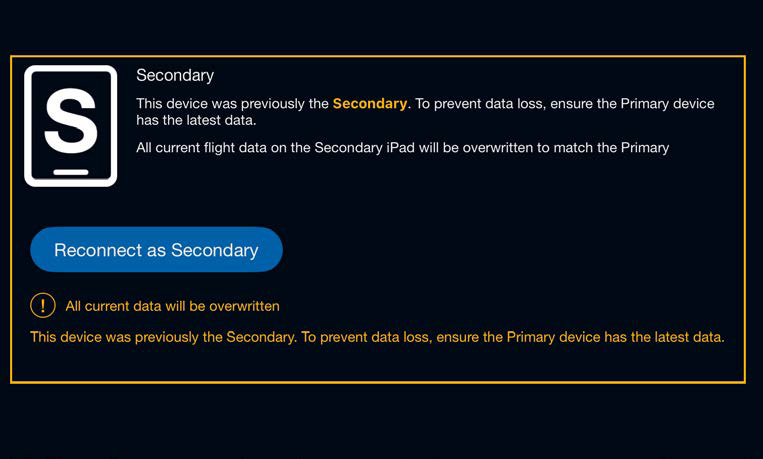
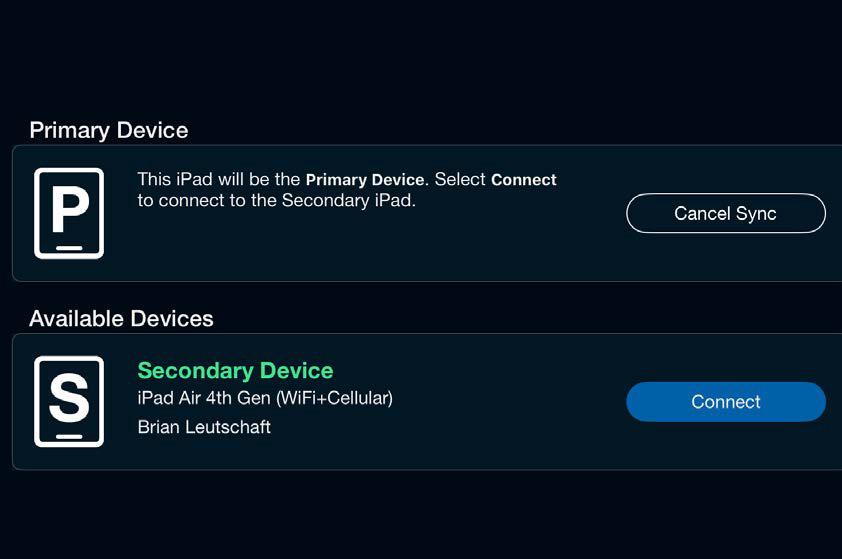
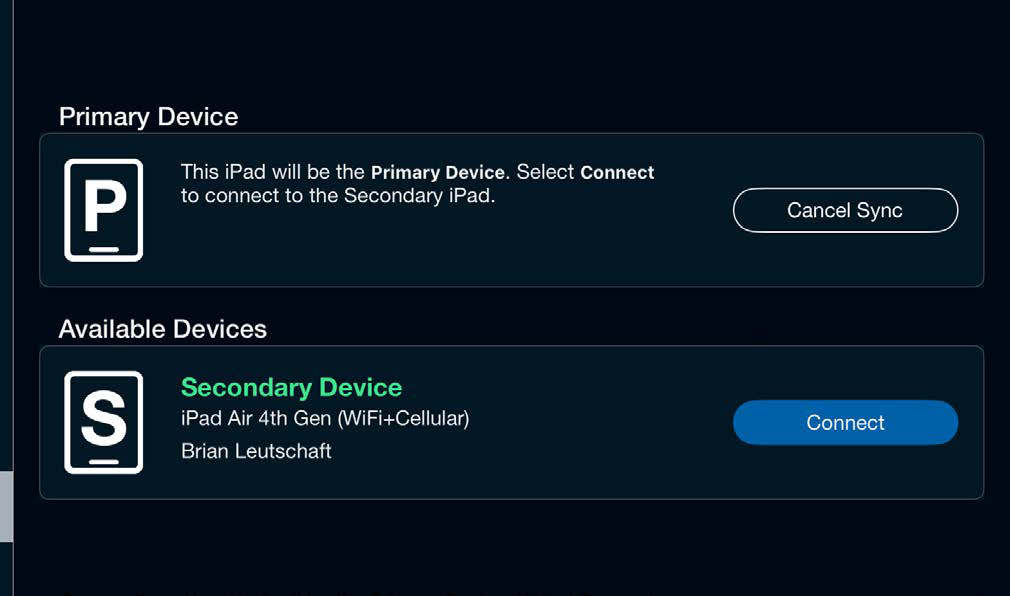
Note: Primary role data always overwrites Secondary role data upon initiating a sync connection; ensure the iPad with the selected Primary role is the device with the most up-to-date information.
Note: The Sync function is not operational if the Wi-Fi hotspot is enabled on any of the iPads attempting to sync together.
If up-to-date flight data was overwritten during the syncing process, see Restore Overwritten Flight Data in Logbook & Data Recovery.

Scott International Procedures, LLC.
Colorado, USA


© 2026 Scott International Procedures, LLC. All rights reserved.
Because safety is in the details™