
Complete Trip

April 1, 2026

4.3+

Closing out the flight will complete the trip and capture everything into a single Master Document.
Closing Out from the Flight Bag

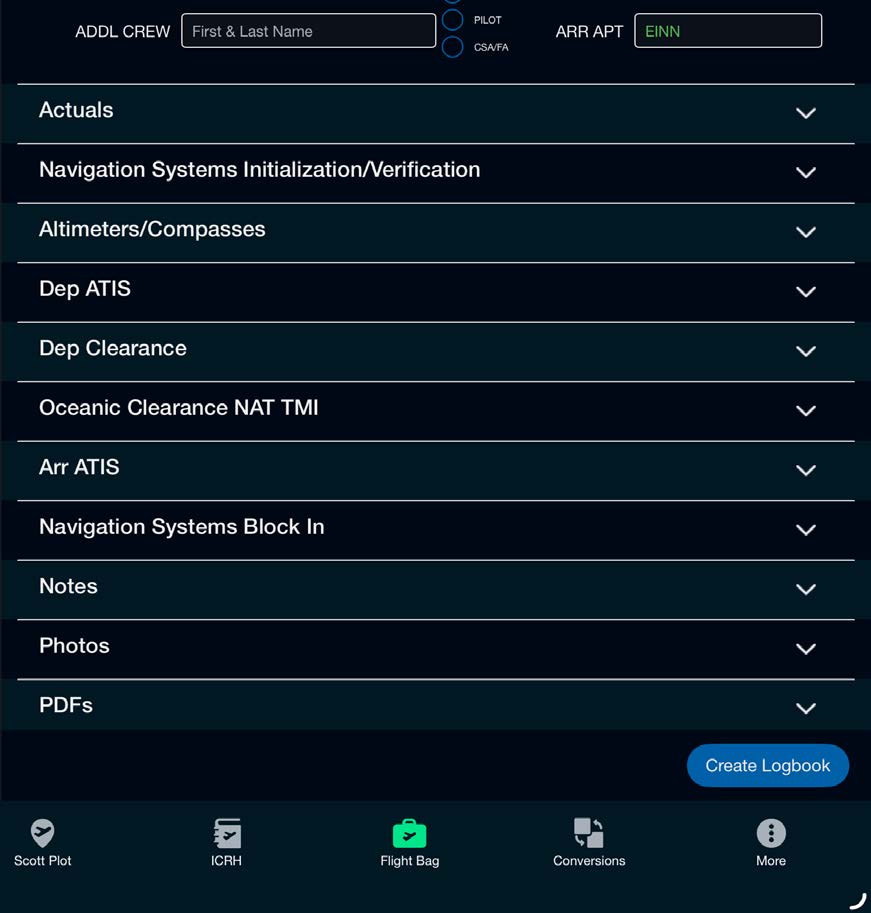
Active Logbook screen with accordion sections and the Create Logbook button
  1. Select the Flight Bag from the main menu at the bottom
  2. Go to your Active Logbook
  3. Select Create Logbook at the bottom
  4. Verify your Journey Logbook information. To email or export to another iPadOS application, select the share button from the top before choosing Close Out Flight.
  5. Select Close Out Flight at the top right
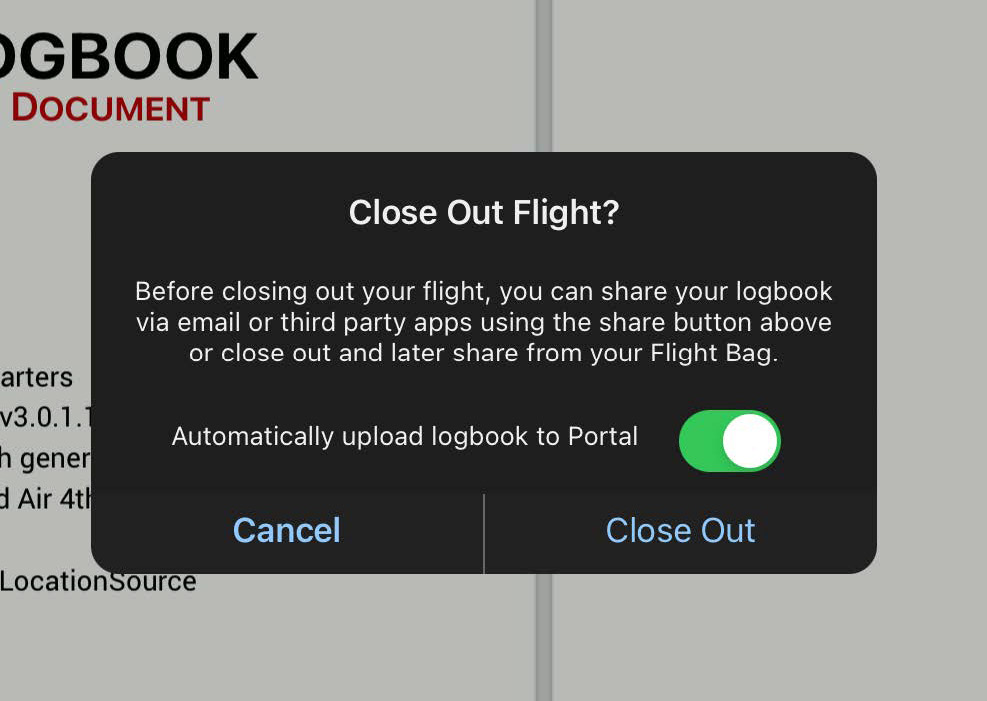
  6. Select Cancel or Close Out Flight:
    • Close Out will automatically upload the Master Document to your portal online. After closing out, the Journey Logbook can still be found locally on the device in your Flight Bag under Archived Journey Logbooks.
    • Cancel will allow you to share the Journey Logbook via the share button or cancel the upload process.
Close Out Flight confirmation dialog with the automatic upload-to-Portal toggle

‍

Note: The system will present an automatic reminder 60 minutes after flight completion if no Journey Logbook has been created.
Note: If you are using the Sync System, execute the Journey Logbook closeout ONLY from the iPad that was designated as the Primary during the flight — see the Post-Flight article in the Sync System category.