Scott IPC utilizes the PDF (Portable Document Format) for managing documents. You can share flight documents such as flight plans and other PDF documents to Scott Plot® in the following ways.
Import from the Portal
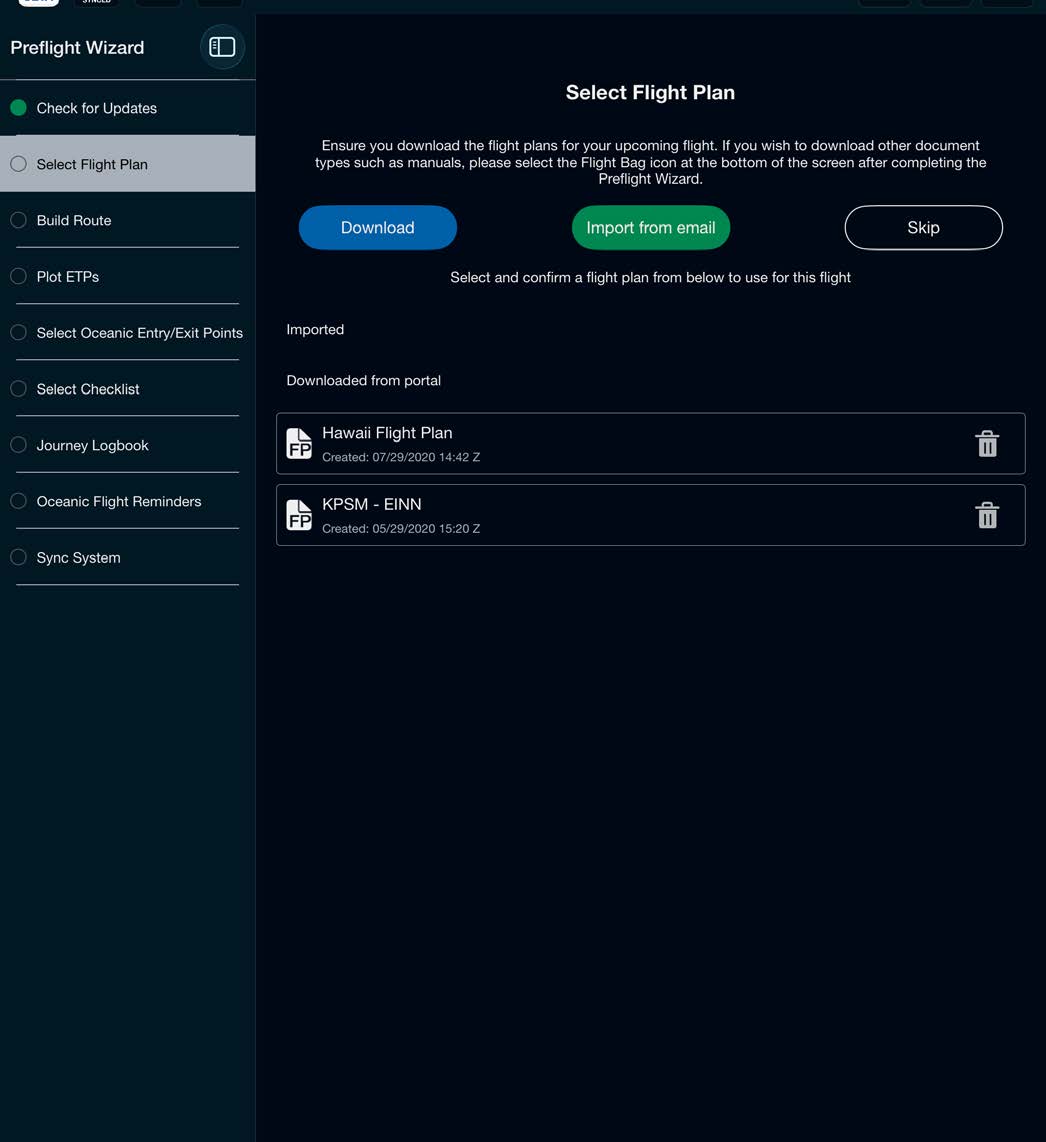
Tap Download to select your flight plan to import from the portal
Tap the cloud icon to download
Wait for the flight plan download to complete
Tap the X to close the downloader
Select a downloaded flight plan
Confirm you have selected the correct flight plan
Tap Confirm
Import from Email
Tap Import from email
Select an email provider (if more than one email app is installed)
Select the email with the flight plan
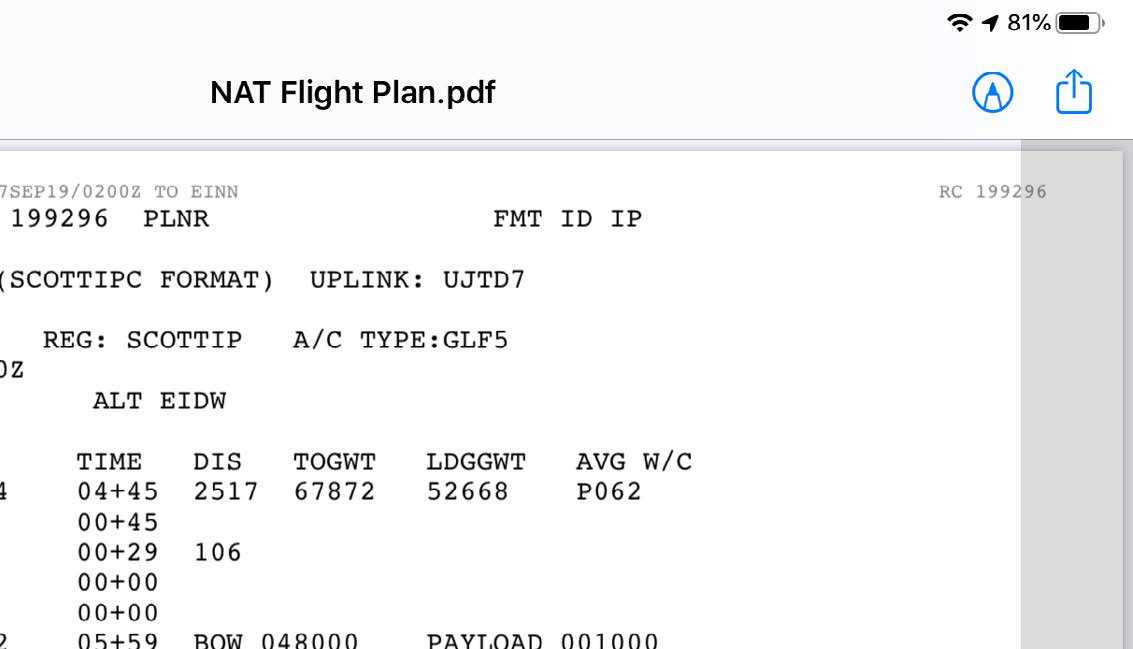
Tap the PDF
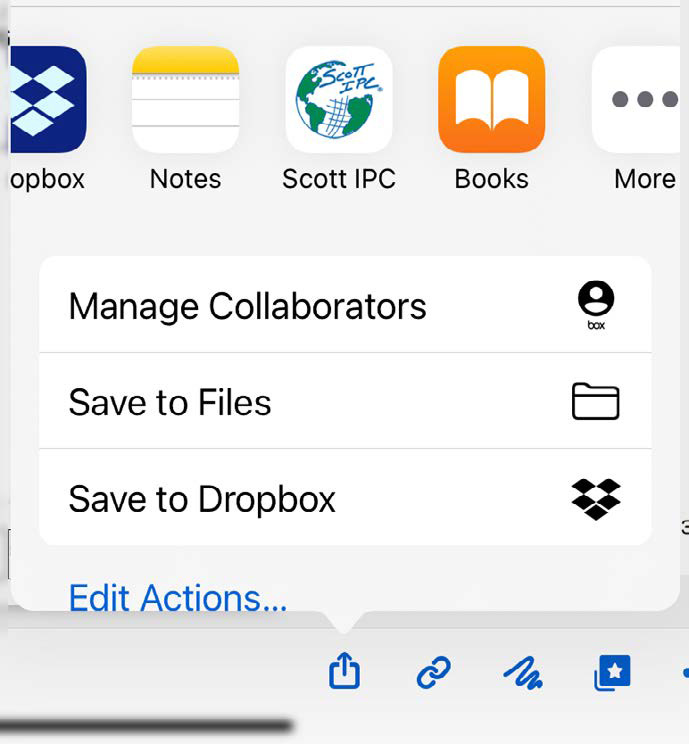
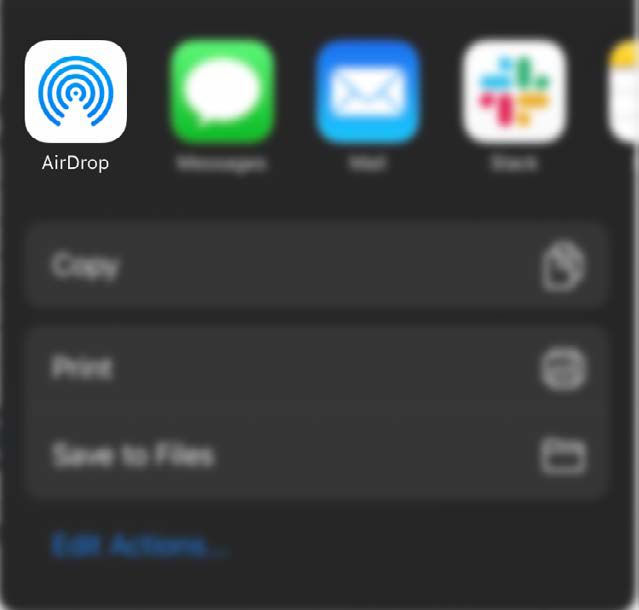
Tap the Share icon
Select Scott IPC — this may be found under More
Tap Save to save the file to Scott Plot
Select the imported flight plan from the list
Confirm you have the correct flight plan
Tap Confirm
Share from Cloud Storage Apps (Box, Dropbox, etc.)
Open the application containing the PDF you would like to share to Scott IPC
Tap on the PDF
Tap the share arrow
Select Scott IPC
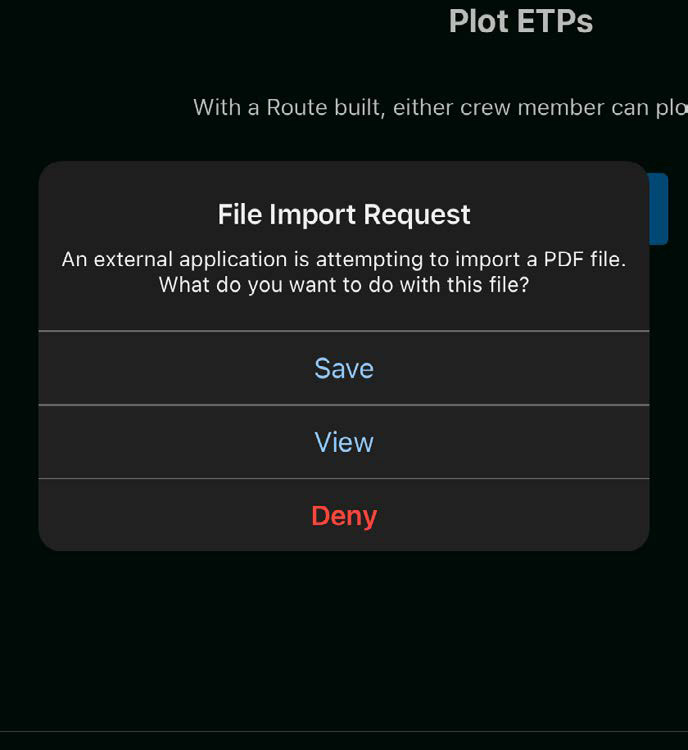
On the File Import Request popup, select Save
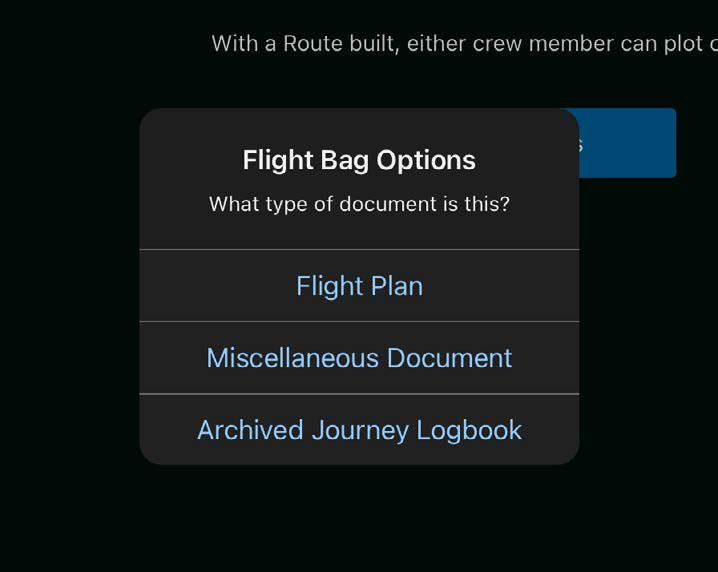
On the Flight Bag Options popup, select what type of PDF you are importing
Your PDF is now available in your Flight Bag
Note: Not all cloud storage apps are listed.
Share via AirDrop
Ensure both devices are on
Open the application containing the PDF you would like to share to Scott IPC
Tap on the PDF
Tap the share arrow
Select AirDrop and follow the AirDrop instructions
After the download is complete, select Scott IPC from the import list
On the File Import Request popup, select Save
On the Flight Bag Options popup, select what type of PDF you are importing
Your PDF is now available in your Flight Bag
Share via the iPad Files App
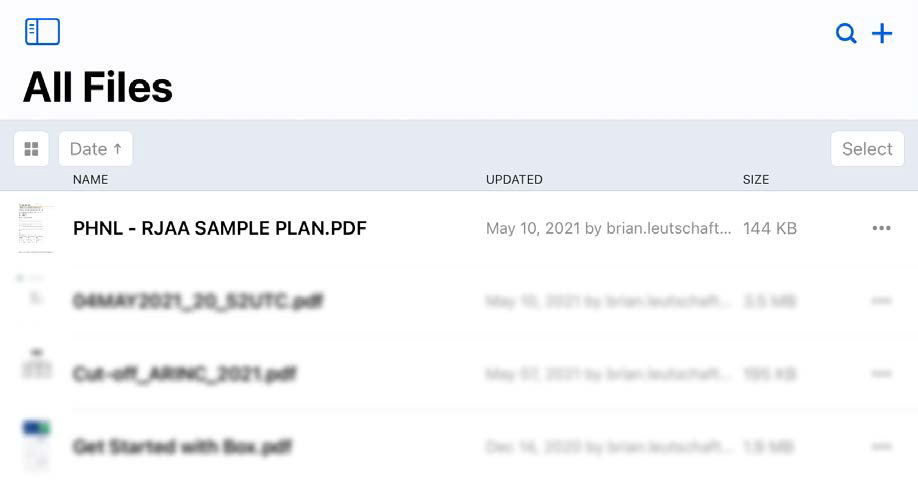
Open the Files app on your iPad
Select the file you wish to share to Scott Plot
Tap the share arrow
Select Scott IPC
On the File Import Request popup, select Save
On the Flight Bag Options popup, select what type of PDF you are importing