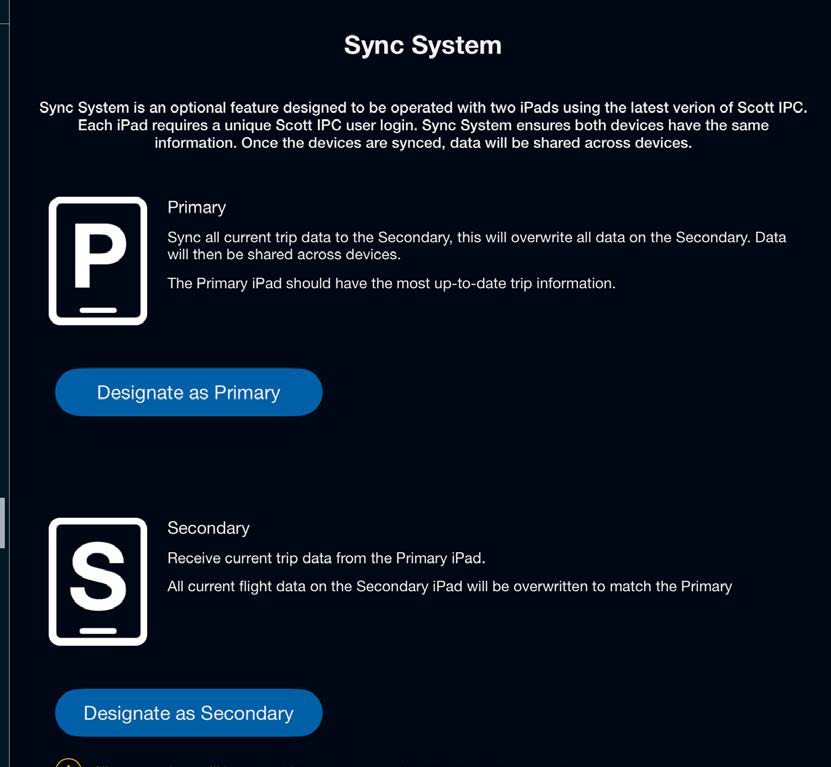
The Scott Plot® Sync System supports a two-person as well as augmented crew workflows.
The Two Sync Roles
Primary role iPad — intended for the crewmember and iPad primarily responsible for all oceanic plotting tasks with Scott Plot. The Primary role iPad will always send a complete update of plotting information to a Secondary role iPad upon initial and subsequent sync connections. The Primary iPad data will always overwrite the Secondary iPad data upon those initial sync connections and reconnections. The Primary role iPad is the main source of data.
Secondary role iPad — intended for an additional crewmember iPad; allows real-time viewing of plotting updates made by the Primary role. The Secondary role also has full access to oceanic plotting activities (flight plan and chart annotations, 10 min checks, wind correction stamps, route changes, position reports, various note fields, and all Journey Logbook entries). Plotting updates automatically synchronize between the Primary and Secondary iPads during a sync-connected flight.
Scott IPC App Version
Sync System functionality requires both iPads to use the same Scott IPC app version. During the sync connection process, a version match test is run between both iPads to ensure they are using the same version; if not, Sync will disconnect with a message.
You can check your app version by tapping on the settings gear in the upper right-hand corner of the screen. Scott IPC recommends updating both iPads with the latest version of the app a few days before your flight.
Two-Person Crew Workflow
Initial connection — Primary and Secondary role iPads connect before a flight, remain connected until the completion of the flight, and disconnect only for the Journey Logbook closeout.
Enroute plotting — either iPad role can make plotting updates, and the updates automatically synchronize during the flight.
Augmented Crew Workflow
Like the two-person crew, a Primary and Secondary role iPad are connected concurrently and share plotting information during a flight. Pilots can connect and disconnect from the active Primary role iPad in the cockpit or swap roles between devices to facilitate crew rotation. This workflow accommodates the additional pilot and iPad rotating in and out of the cockpit. A pilot rotating back into the cockpit will always need to select the Secondary role, as the current Primary role will send a complete update of all plotting information recorded up to that point in the flight.
Note: The information from the Primary role will always overwrite any information on the Secondary role iPad upon initial sync connection or reconnections.
Under the augmented crew workflow, there are two methods for rotating the oceanic plotting duties with the Sync System.
Augmented Crew — Dedicated Airplane iPad
Under this method, the aircraft has a dedicated iPad to be used as the Primary role iPad for oceanic plotting while using the Sync System. The dedicated aircraft iPad should always remain in the cockpit during a flight. Secondary role iPads are rotated in/out of the cockpit as the flight crew rotates.
Initial connection — Primary and Secondary role iPads connect before a flight, and iPads can be rotated as crewmembers rotate in and out of the cockpit. It is recommended that the iPad dedicated to the cockpit remain the Primary iPad throughout the flight.
Enroute plotting — either iPad role can make plotting updates and the updates are automatically synchronized while synced.
Rotating iPads — the Primary role iPad remains in the cockpit as the Primary role. The current Secondary role iPad leaving the cockpit initiates the disconnect from sync; the incoming iPad connects in the Secondary role to receive the most up-to-date plotting information from the Primary iPad. One or more Secondary role iPads may be rotated in/out of the cockpit as the flight crew rotates.
Augmented Crew — Individual Pilot iPads
Under this method, pilots use their own iPads as they rotate the oceanic plotting duties while using the Sync System during a flight. A pilot rotating back into the cockpit must always select the Secondary role, as the current Primary role will send a full update of all plotting information recorded to that point in the flight.
Initial connection — Primary and Secondary role iPads connect before a flight and then can be rotated as an additional pilot and iPad rotate in and out of the cockpit.
Enroute plotting — either iPad role can make plotting updates and the updates are synchronized automatically between devices.
Augmented crew iPad rotation — pilots rotate in/out of the cockpit with their iPad and Sync role. No dedicated aircraft iPad remains in the cockpit in the Primary role, meaning that either a Primary or Secondary role pilot/iPad could rotate out of the cockpit; the Primary role should be passed to the pilot/iPad remaining in the cockpit. Pilots rotating into the cockpit must always select the Secondary role initially, to receive the full update of all plotting information recorded up to that point in the flight.
Scenario Walkthroughs
Primary Role iPad and Pilot Rotates Out
In this scenario, the Primary role iPad and pilot rotate out of the cockpit.
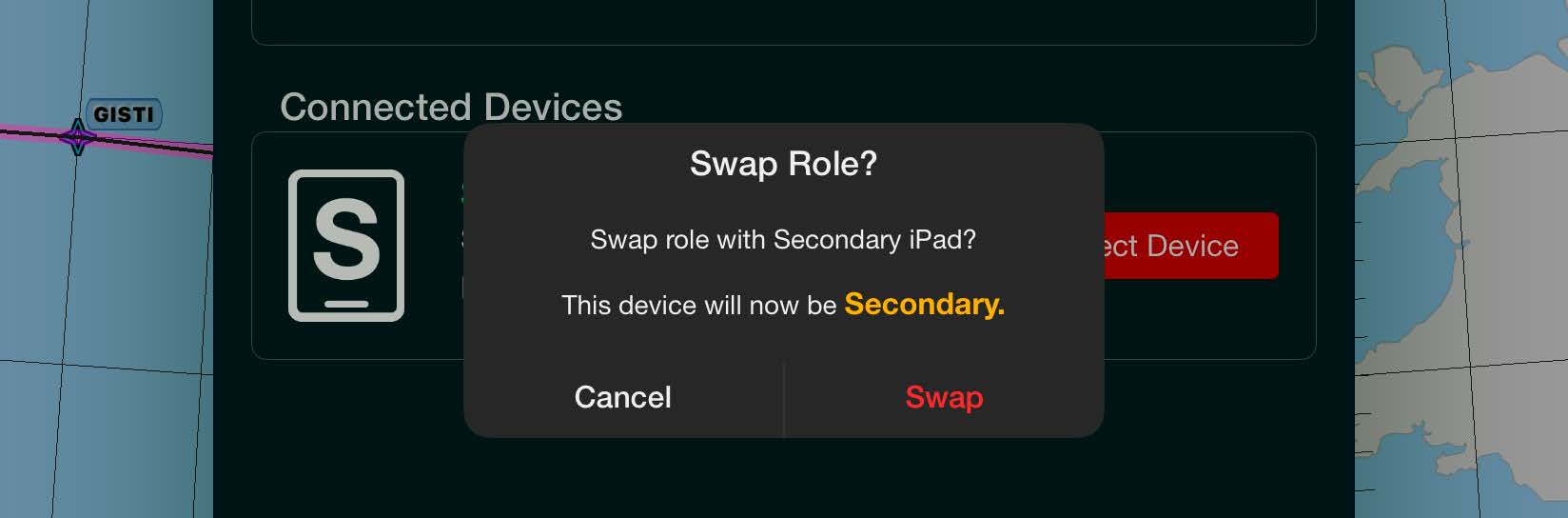
Transfer the Primary sync role to the pilot remaining in the cockpit by swapping roles with the Secondary iPad: tap Sync System, then tap Swap to Secondary.
Disconnect sync to prepare to sync with the incoming pilot/iPad: tap the sync icon, then tap Disconnect Device.
The new Primary (pilot remaining in the cockpit) syncs with the pilot and iPad rotating into the cockpit: both iPads tap sync. The pilot and iPad rotating into the cockpit should always choose Secondary as their role to receive the up-to-date plotting information from the Primary iPad. The pilot already in the cockpit should select and remain in the Primary role.
After verifying plotting information has been shared and is up-to-date on the new Secondary iPad, the crew can safely swap roles if desired: either iPad taps the sync icon and selects Swap to Primary or Swap to Secondary.
Secondary Role Pilot and iPad Rotate Out
In this scenario, the pilot and iPad in the Secondary role while synced are rotating out of the cockpit and being replaced by a relief pilot and iPad.
Disconnect sync to prepare to sync with the incoming pilot/iPad: tap the sync icon, then tap Disconnect Device.
The existing Primary (pilot remaining in the cockpit) syncs with the pilot and iPad rotating into the cockpit: both iPads tap sync; the incoming pilot chooses Secondary, and the pilot already in the cockpit remains Primary.
After verifying plotting information is up-to-date on the new Secondary iPad, the crew can safely swap roles if desired.
Pilot and iPad Rotates Back In
In this scenario, a pilot is rotating back into the cockpit.
If necessary, transfer the Primary sync role to the pilot remaining in the cockpit by swapping roles with the Secondary iPad: tap the sync icon and select Swap to Primary or Swap to Secondary as desired.
Disconnect sync: tap the sync icon, then tap Disconnect Device.
The Primary iPad (pilot remaining in the cockpit) syncs with the pilot/iPad rotating into the cockpit: both iPads tap sync; the incoming pilot always chooses Secondary, and the pilot in the cockpit remains Primary.
After verifying plotting information is up-to-date on the Secondary iPad, the crew can safely swap roles if desired.
Dedicated Aircraft iPad with Crew Rotation
In this scenario, pilots rotate in/out of the cockpit and sync their iPads with a dedicated aircraft iPad that never leaves the cockpit.
The dedicated aircraft iPad remains in the Primary role throughout the flight.
Disconnect sync to prepare for the incoming pilot/iPad: tap the sync icon, then tap Disconnect Device.
The dedicated aircraft iPad (which should be the previous Primary iPad with the most up-to-date plotting information) syncs with the pilot/iPad rotating into the cockpit: both iPads tap sync; the incoming pilot always chooses Secondary, and the dedicated aircraft iPad remains Primary.
Verify plotting information has been shared and is up-to-date on the Secondary iPad.
Note: Primary role data always overwrites Secondary role data upon initial sync connection and reconnections.