
Scott International Procedures
April 1, 2026
4.3+
There are two methods in Scott Plot® to add ETPs to your route of flight.
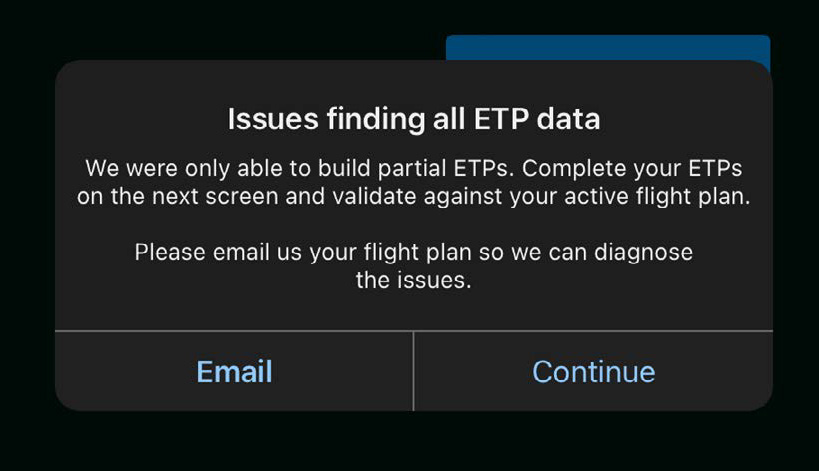
Scott Plot will read your flight plan and attempt to plot your ETPs graphically. If Scott Plot is not able to read some or all of your flight plan data, you will be able to edit or add ETPs manually. Your flight plan will be presented in the upper right-hand corner of the screen to enable validation of all ETPs plotted graphically.
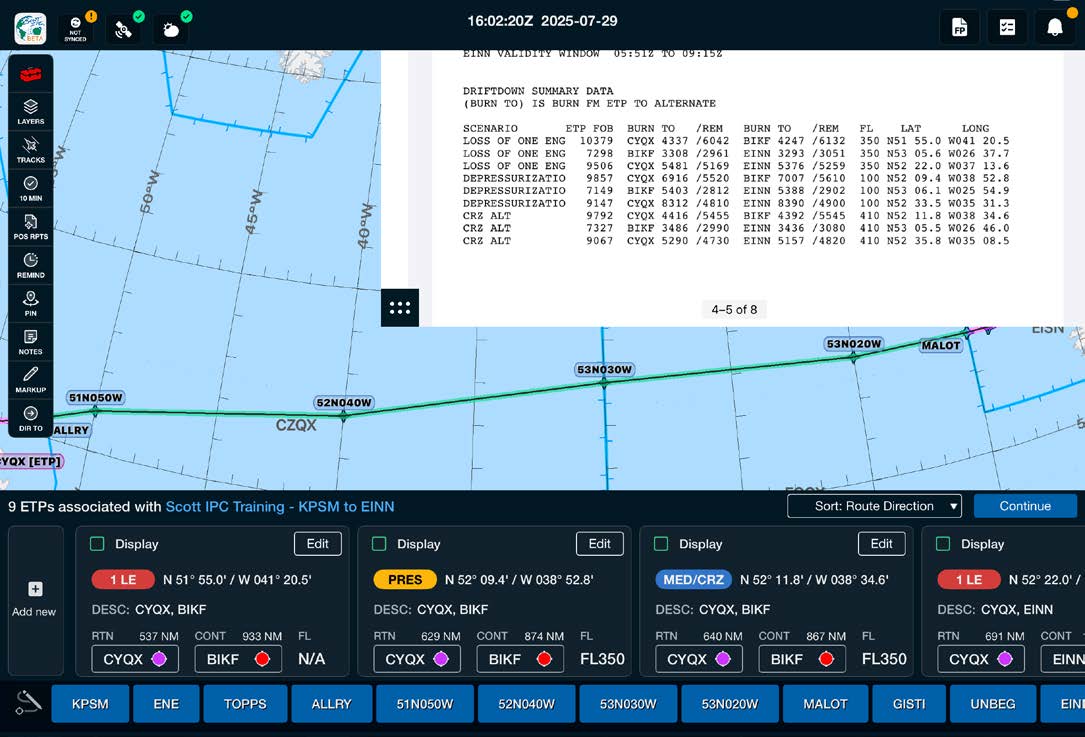
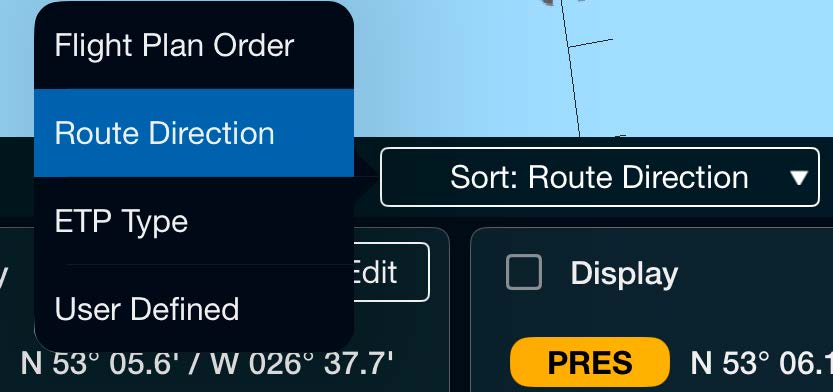
Once the ETPs are located within your flight plan, Scott Plot will list the number of ETPs found, your flight name, and the method they are organized. By default, ETPs are sorted by your flight plan order. You also have the option to sort the ETPs found by Route Direction or ETP Type by tapping the Sort button.

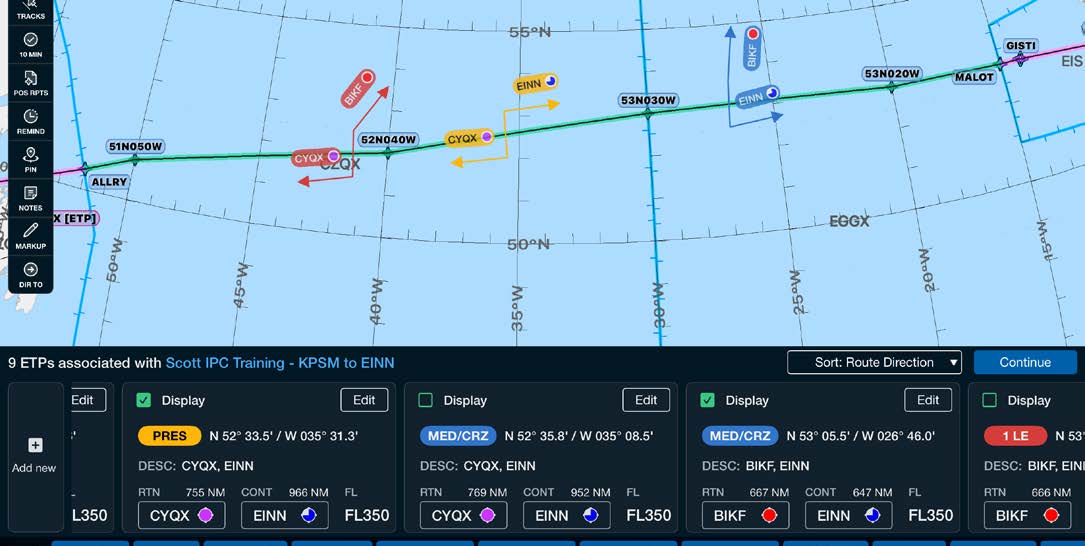
ETPs are color-coded by type:
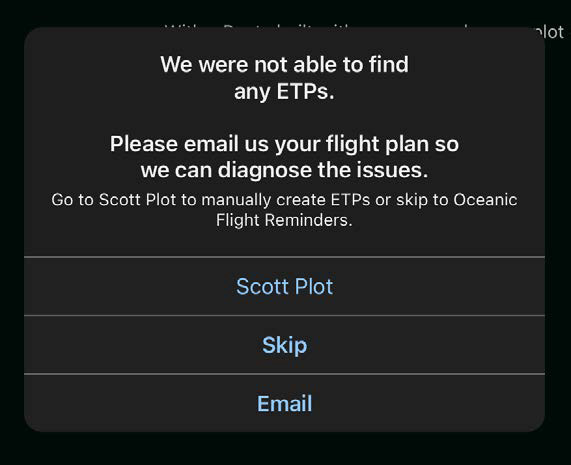
If Scott Plot is unable to read some or any of your ETPs, you will need to plot them manually. See ETPs by Lat/Long from Flight Plan to enter values from your flight plan, or Calculate New ETP to have the app calculate one from wind and true airspeed.
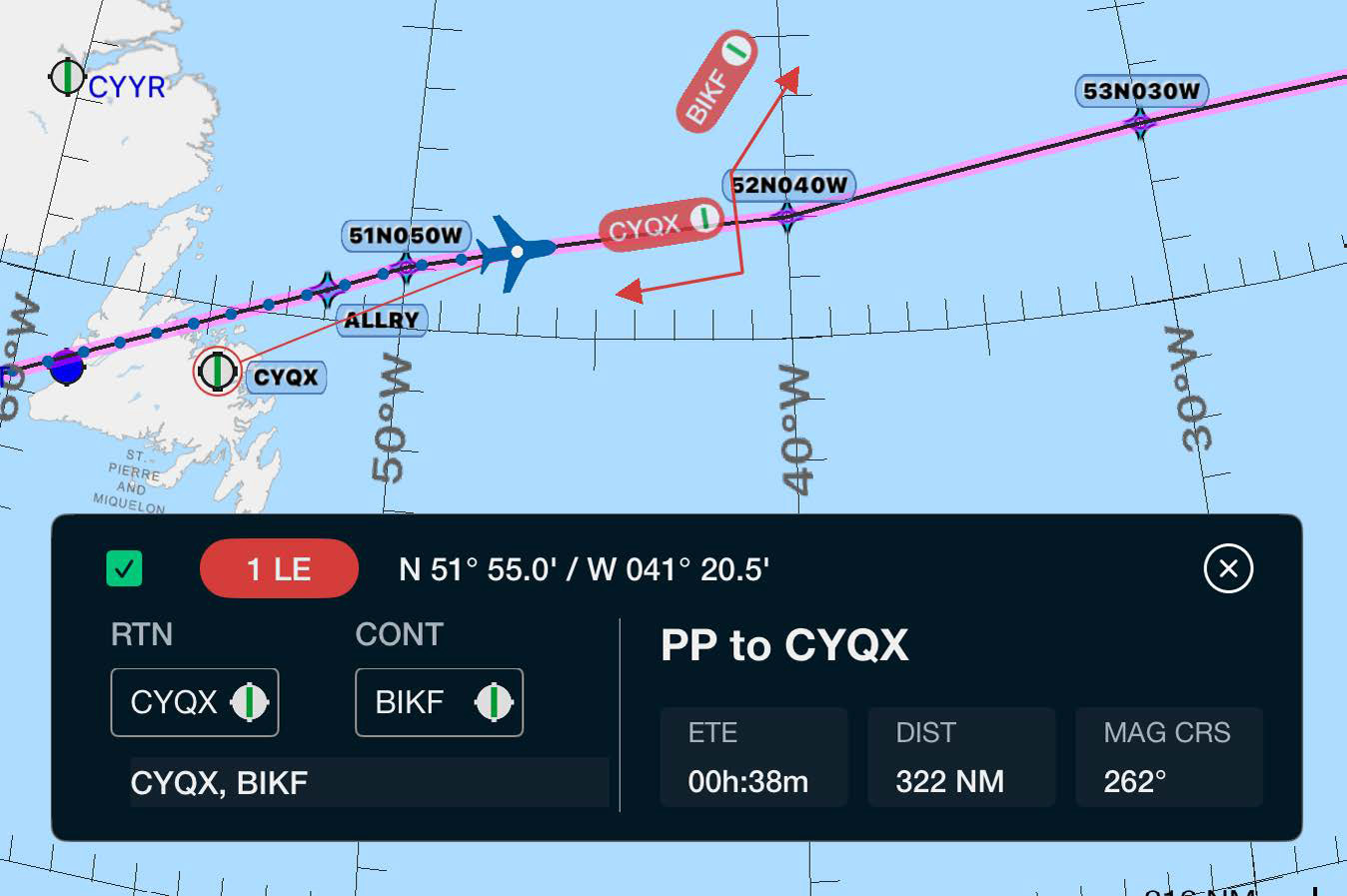
ETP properties and chart arrows will depict the latest METAR information for ETP alternates. Tapping on the airport METAR symbol will open detailed METAR/TAF information.

Scott International Procedures, LLC.
Colorado, USA


© 2026 Scott International Procedures, LLC. All rights reserved.
Because safety is in the details™