
Scott International Procedures
April 1, 2026
4.3+
Satcom Direct® onboard routers can easily be utilized as the GPS source. The plotting chart supports connectivity to SDR and SDR Gateway equipment.
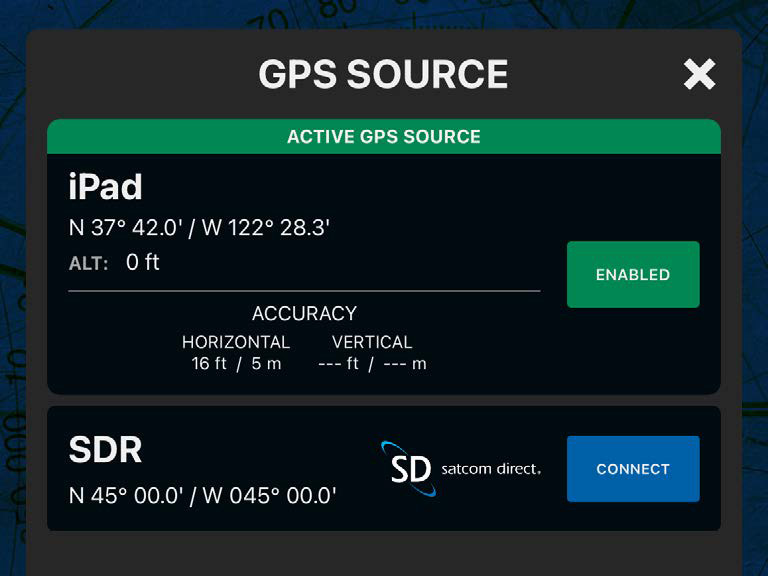
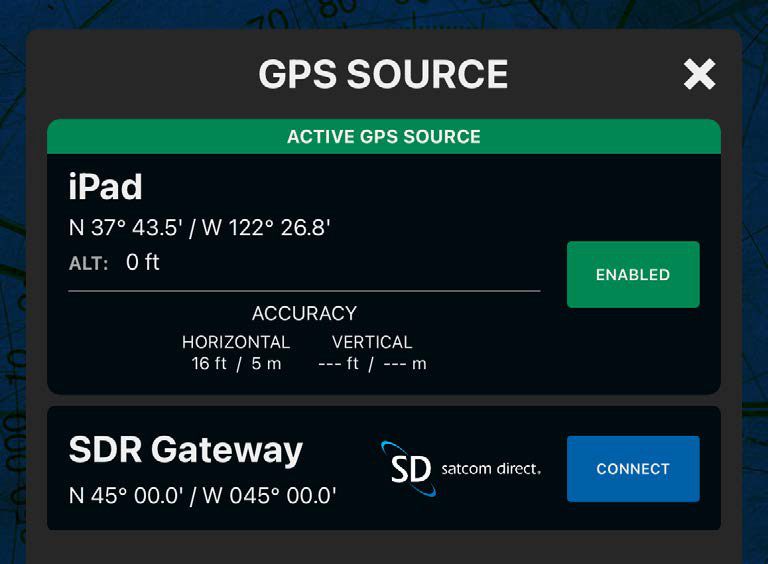
Note: Scott Plot uses very little data over the Wi-Fi, but be aware of other apps using data and the usage rates that would apply.
Warning: If your app utilizes an SDR or SDR Gateway and you lose your aircraft navigation system, including GPS reception, you will also lose the location data provided from the SDR and/or SDR Gateway. It is recommended that an external GPS be carried for this contingency.
Note: In order to receive GPS location information from the SDR or SDR Gateway, the aircraft must be configured accordingly with the 429 Bus wired to the Satcom Direct router. If you are unable to connect Scott Plot to the SDR or SDR Gateway or are unsure if your aircraft is configured for the functionality, please contact Satcom Direct technical support.

Scott International Procedures, LLC.
Colorado, USA


© 2026 Scott International Procedures, LLC. All rights reserved.
Because safety is in the details™