
Check for Updates

April 1, 2026

4.3+

The Preflight Wizard is where each flight is initially set up. Follow these steps for the initial setup:
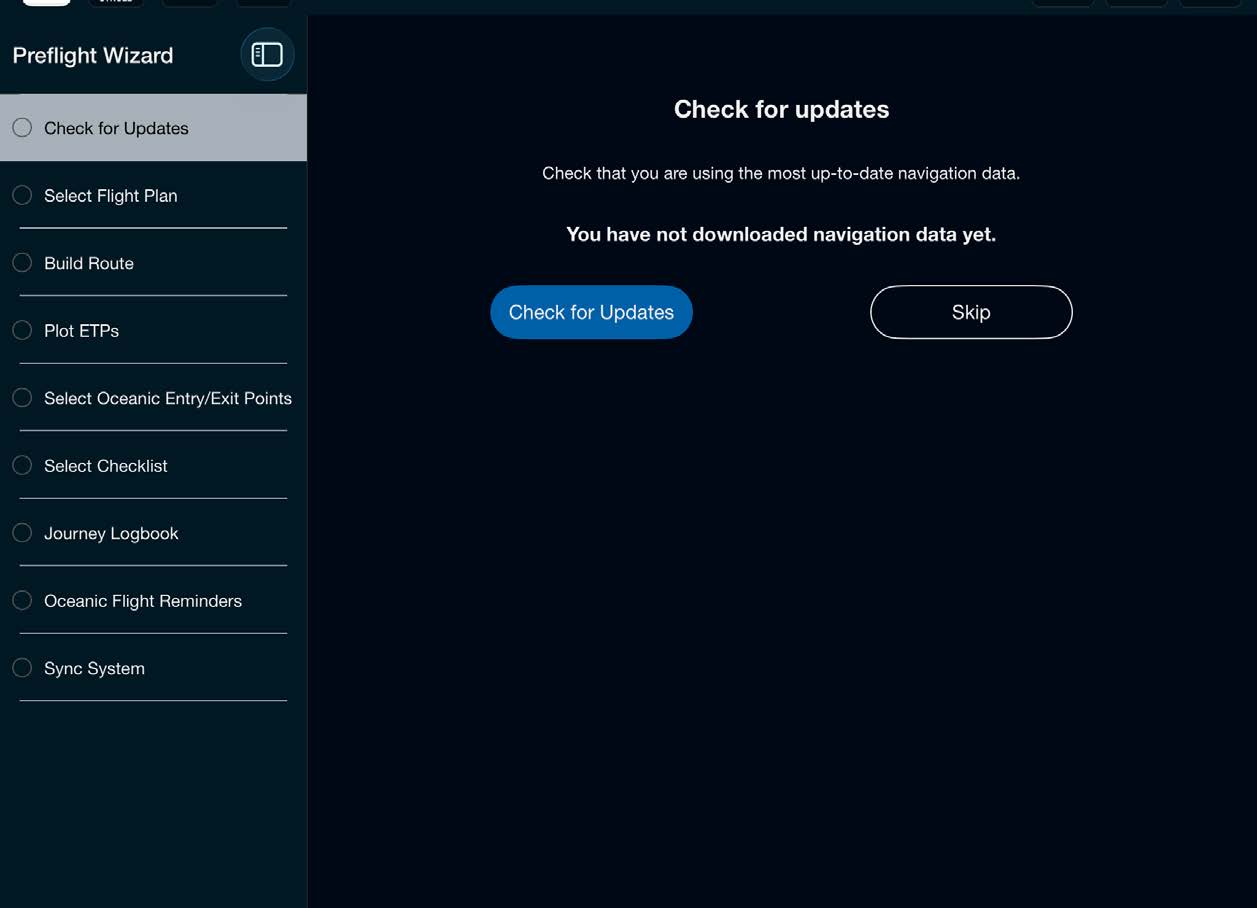
  • Tap the Preflight Wizard icon to begin
  • Tap Check for Updates to view available updates
  • Download the latest ARINC database
  • Tap Continue to return to the Preflight Wizard
Preflight Wizard Check for Updates step with Check for Updates and Skip buttons
Note: You can select Skip at any time to skip a step within the Preflight Wizard.
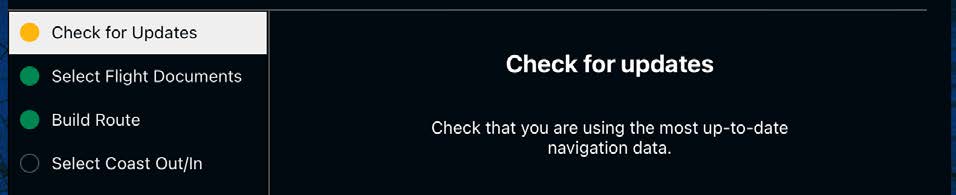
Preflight Wizard Check for Updates step with the navigation-data prompt

ARINC Data Status Colors

The Preflight Wizard shows the following colors based on the status of ARINC data updates available:
  • Clear — No data on device
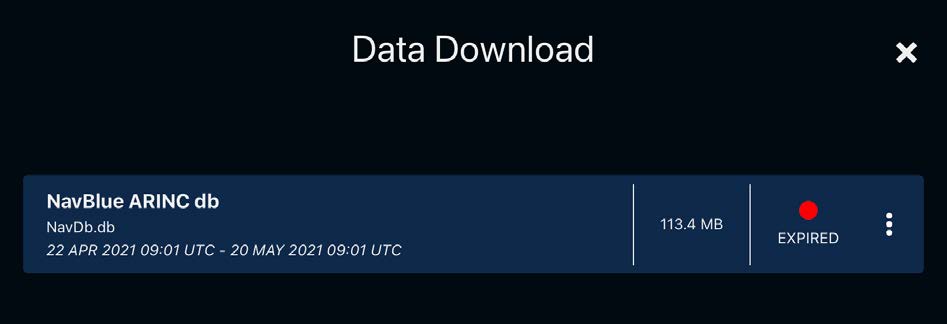
  • Red — Data on device and data is expired
  • Amber — Data on device but new data is available for download
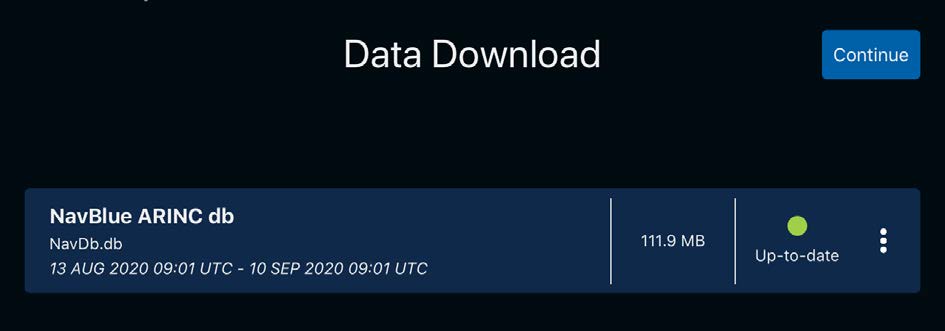
  • Green — Data on device and data is currently effective (not expired)
Data Download screen showing an expired ARINC database with red status
Data Download screen showing an up-to-date ARINC database with green status

The Data Download screen presents the next cycle available for download along with the cycle dates.
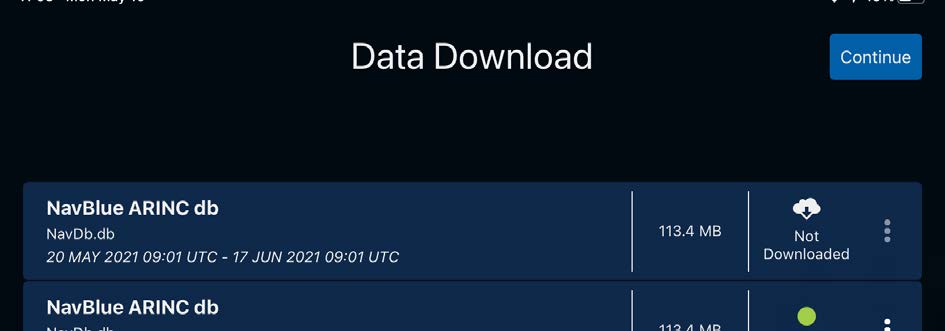

Data Download screen showing the next ARINC cycle available for download with cycle dates