Scott International Procedures
You can use the existing Scott IPC checklist or modify it to your requirements. To begin creating a new checklist or to modify the default checklist, select Edit, then select + and choose Create new checklist or Create from default checklist.
A completely blank checklist will appear.
Note: After selecting to create a new checklist, be sure to name the checklist.
There are three entry fields available when creating or modifying a checklist:
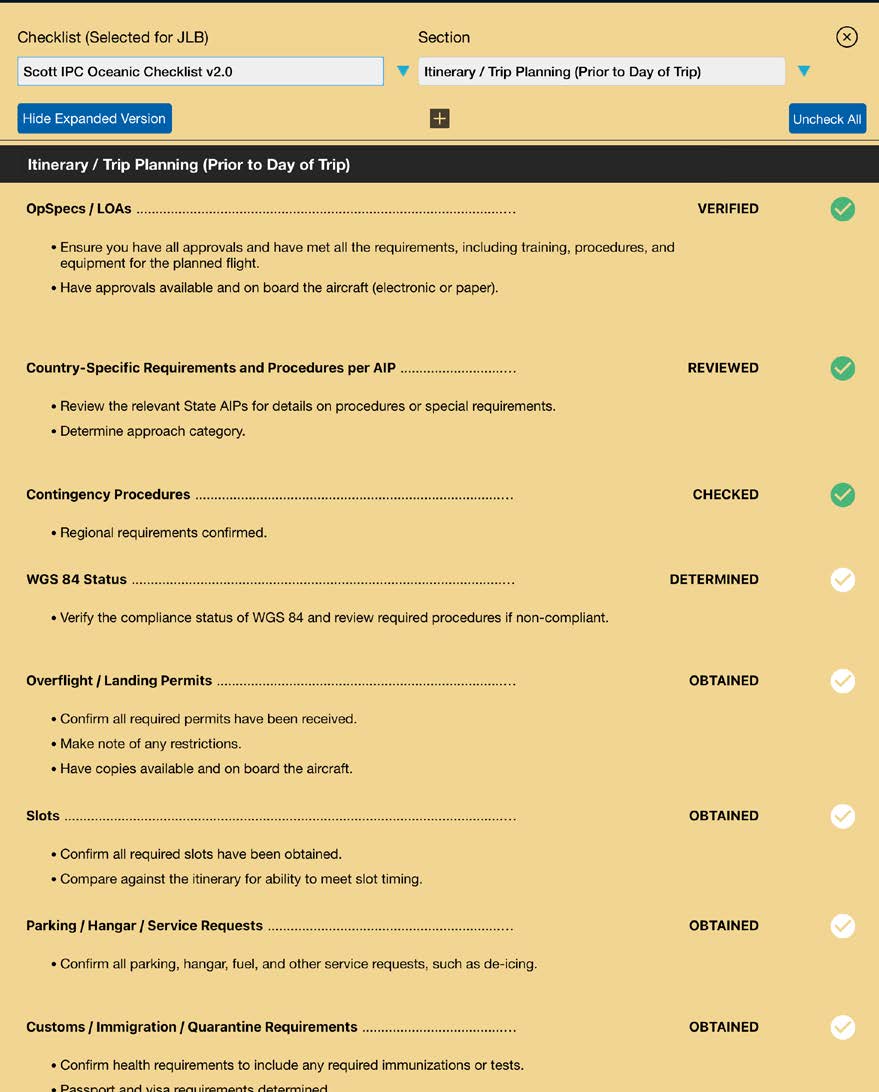
All of the sections and items from the Scott IPC Checklist will populate. You can add, edit, or delete entries and sections. Enter a new name for your checklist and select Save to add it to the Preflight Wizard and your Flight Bag.
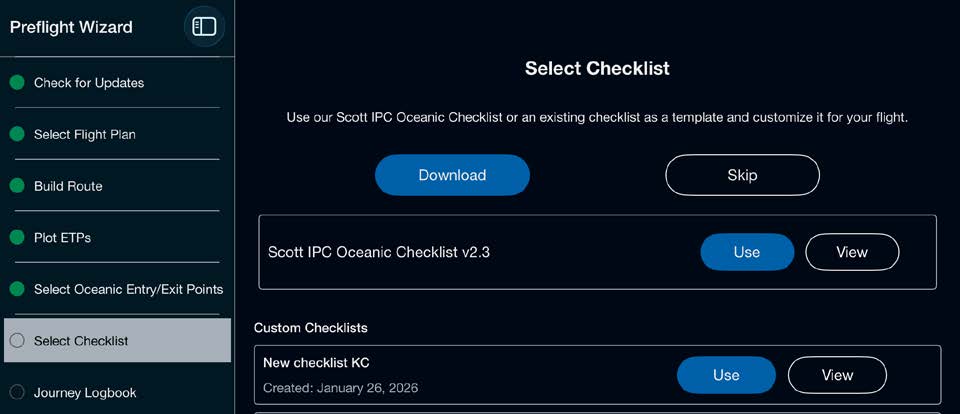
Once you close your checklist, if you made edits, you will now see your new checklist in the Preflight Wizard and it will save to your Flight Bag. Select Use to continue. To see a custom checklist that was created but is not showing in the Preflight Wizard, go to Flight Bag then Checklists and download the desired checklist.
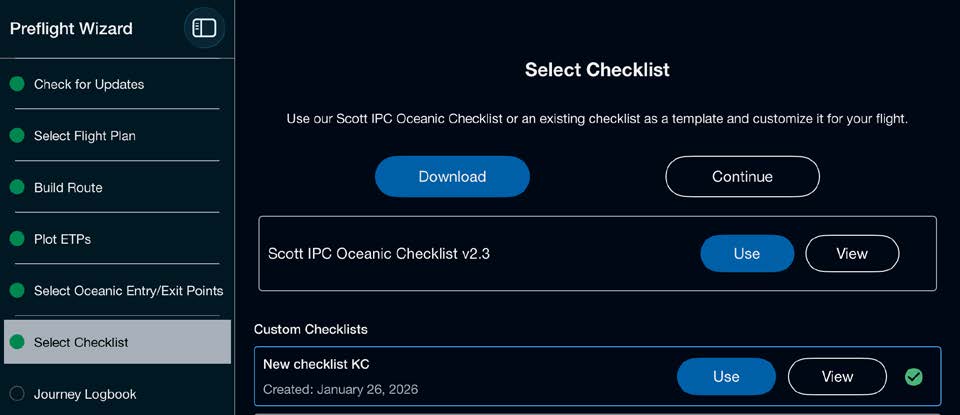
Note: All custom checklists created are automatically saved to your app portal account and will be listed in the section marked Custom Checklists on the Preflight Wizard Select Checklist step. Custom checklists are also available at Flight Bag > Checklists.