The ICRH in the App

April 1, 2026

4.3+

Tap the ICRH® icon on the bottom menu to open the Scott IPC International Cockpit Reference Handbook.
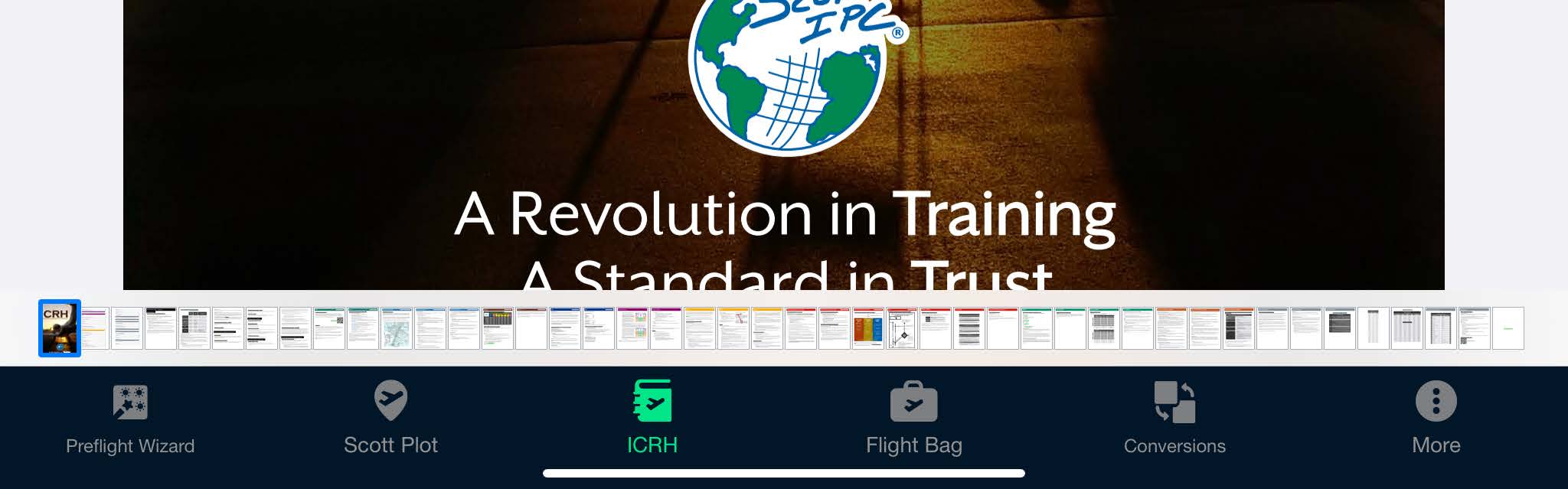
ICRH open in the Scott IPC app with the bottom navigation menu

Updating the ICRH

Your installation of the Scott Plot® app will include the ICRH (subscription service). When a new version of the ICRH is published, it will be noted by an amber exclamation point on the Settings icon.

To update, tap on the More icon and then tap the Update ICRH button to start the update. When finished, a notification will appear.
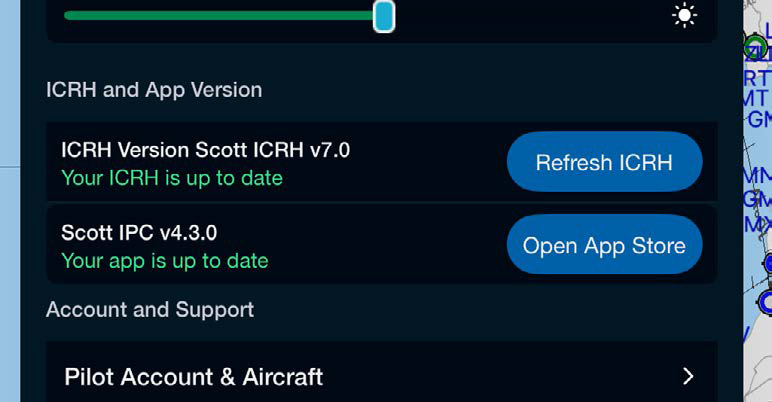
App settings showing the ICRH version and Refresh ICRH button

Navigation Tools

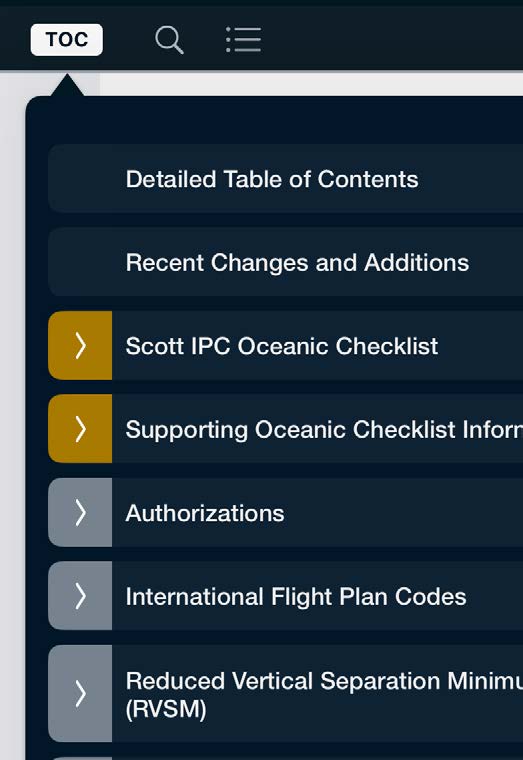
  • TOC: Quick access to a full table of contents.
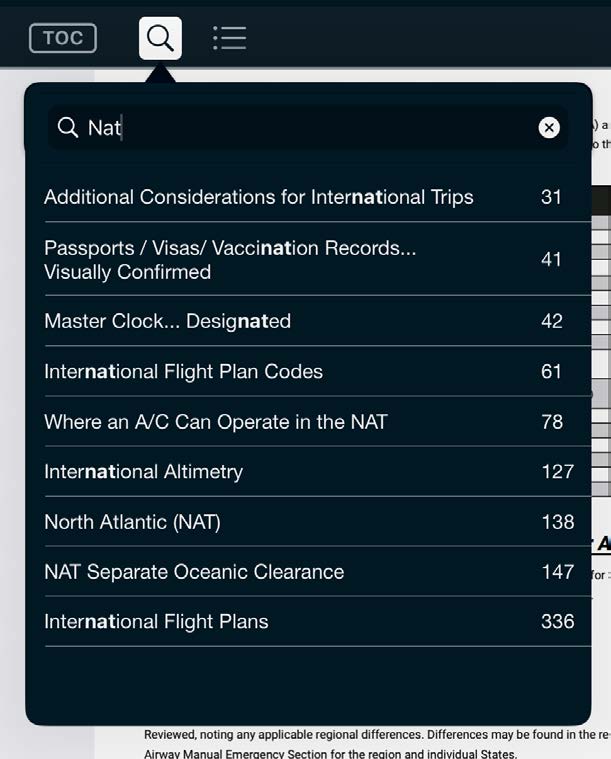
  • Search: Search by page number, section, or topic.
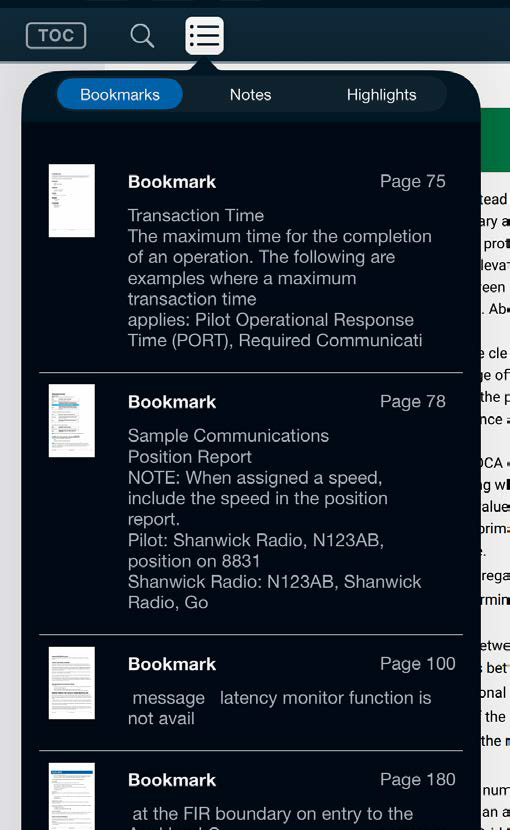
  • ICRH menu: Access created bookmarks, notes, and highlights using this menu. You can also remove bookmarks and clear notes or highlights on pages.
  • Annotation Tool: Opens or closes the annotation toolbar in the ICRH. See the App Annotations article.
  • Bookmarks: Use this icon to add or remove a page's bookmark status.
ICRH table of contents popup
ICRH search popup showing results
ICRH bookmarks, notes, and highlights menu
Note: If no table of contents is displayed, go to your app settings and select Update ICRH.

Annotations Across Devices

Annotations, bookmarks, notes, and highlights that users make are saved in their Scott IPC Portal account. If you log into a different iPad, the annotations created previously will be available on the new device.

ICRH Settings

This menu allows you to customize how the ICRH performs page transitions, page modes, and page fitting according to your preferences.
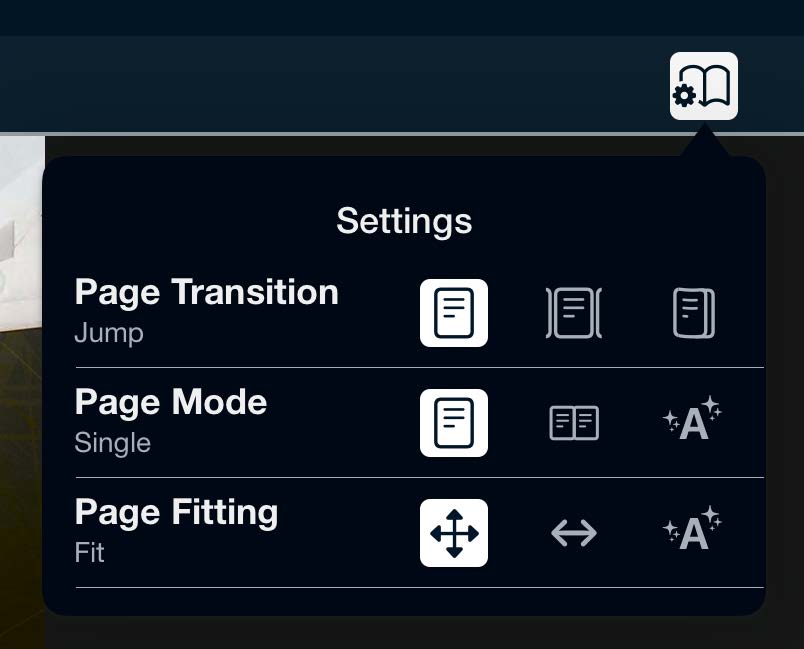
ICRH settings popup with page transition, mode, and fitting options

Page Transitions Options

  • Jump
  • Continuous
  • Curl

Page Mode Options

  • Single page
  • Double page
  • Adaptive — automatically switches between single and double page mode based on the orientation of the iPad to optimize content viewing.

Page Fitting

  • Fit — aspect fit results in a spread view with all its pages visible on the screen.
  • Fill — aspect fill will fill the page to cover the screen's width entirely.
  • Adaptive — automatically switches between page fit and page fill to display the most content on the screen.

Thumbnail View

You can easily navigate through the ICRH by tapping on the bar or dragging your finger slowly along the pages on the bar. To show the thumbnail view, tap on an ICRH page; to hide the thumbnail view, tap the page again.