
Scott International Procedures
April 1, 2026
4.3+
Scott Plot® supports the use of a flight simulator to provide simulated aircraft position data, enabling simulated flights while interacting with the Scott IPC app. Microsoft Flight Simulator and X-Plane are currently supported. These instructions describe how to connect Scott IPC to Microsoft Flight Simulator 2020 (MSFS 2020).
To use Scott IPC with a flight simulator, you must install Flight Events on the same Windows computer that is running MSFS 2020. Flight Events is a free, third-party application that acts as a bridge between the flight simulator and the Scott IPC app. The Scott IPC app runs on an iPad, and the steps required to connect the iPad to the simulator are described below.
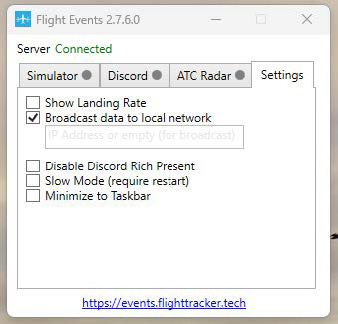
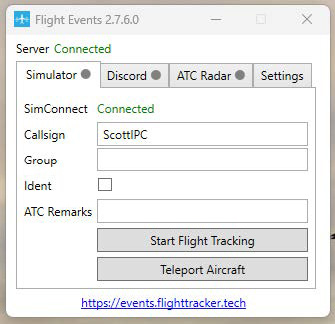
Note: Ensure BOTH applications are connected to the SAME Wi-Fi network.
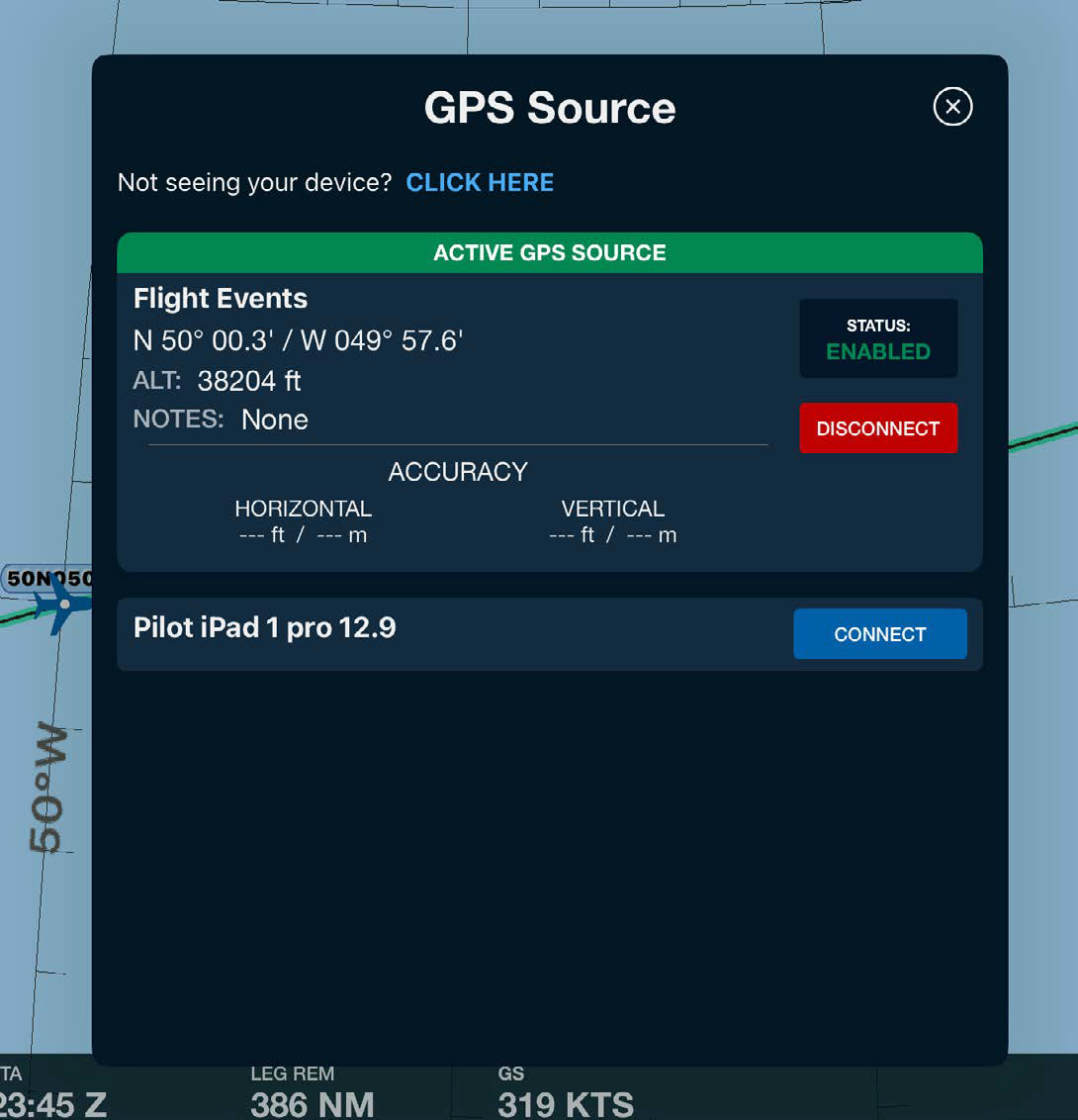
Your position will be shown on the Scott Plot enroute view, and you can interact with application functionality for familiarization and training.

Scott International Procedures, LLC.
Colorado, USA


© 2026 Scott International Procedures, LLC. All rights reserved.
Because safety is in the details™