Scott International Procedures
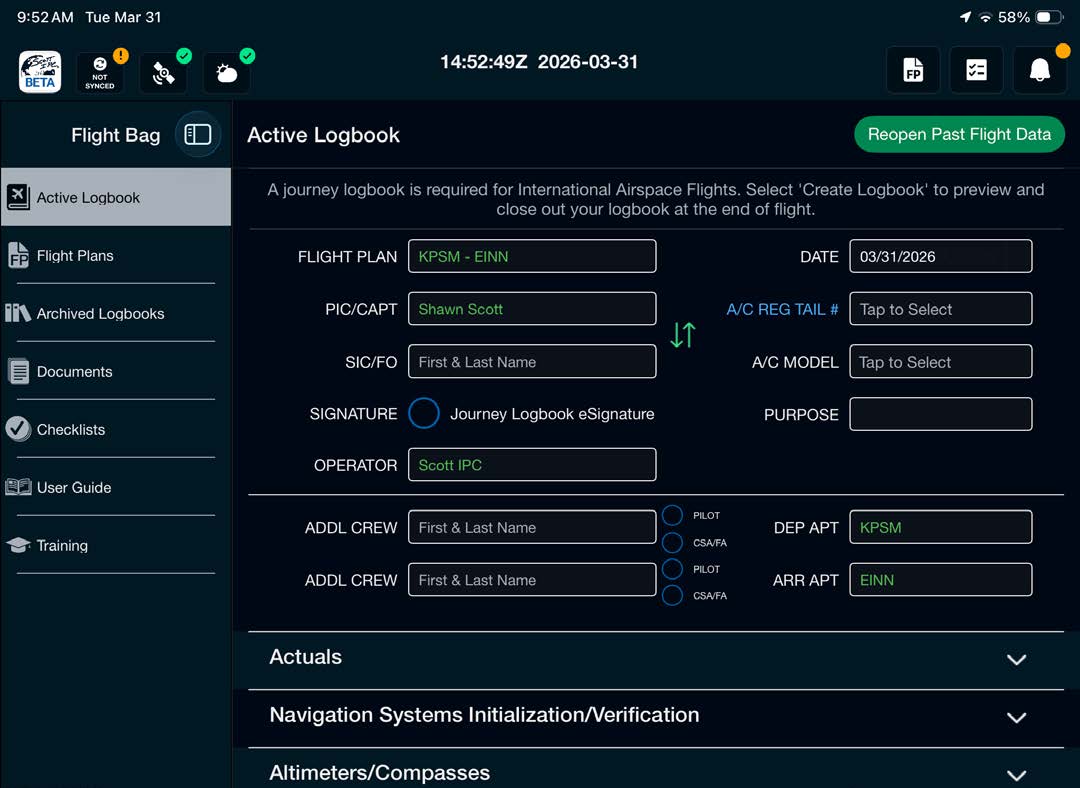
Allows you to edit and view the active Journey Logbook for the flight.
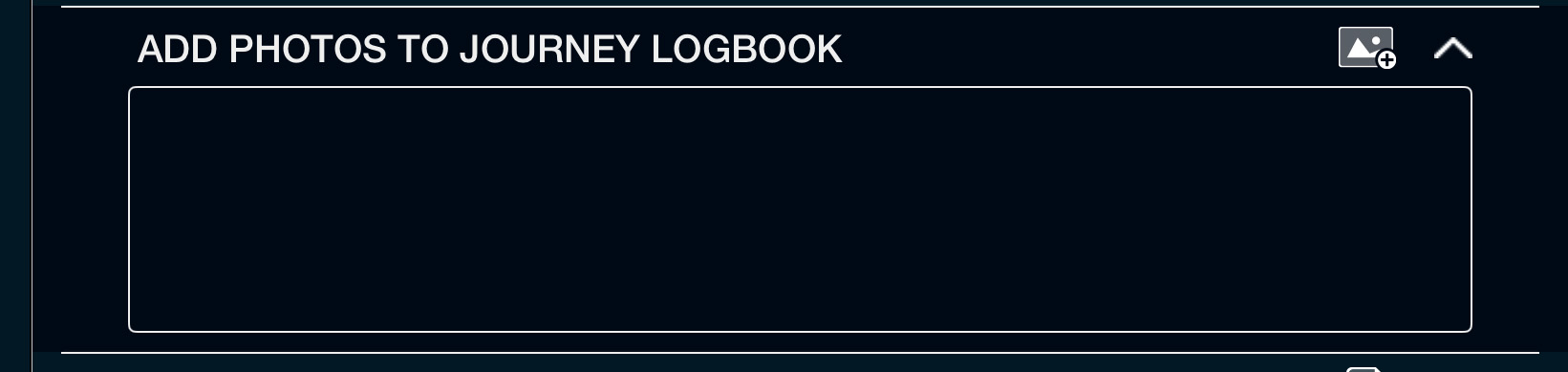
iPad photos can be added to multiple sections of the Journey Logbook during a flight or anytime prior to closing it out.
Note: All attached photos will be shown within the Journey Logbook Master Document.
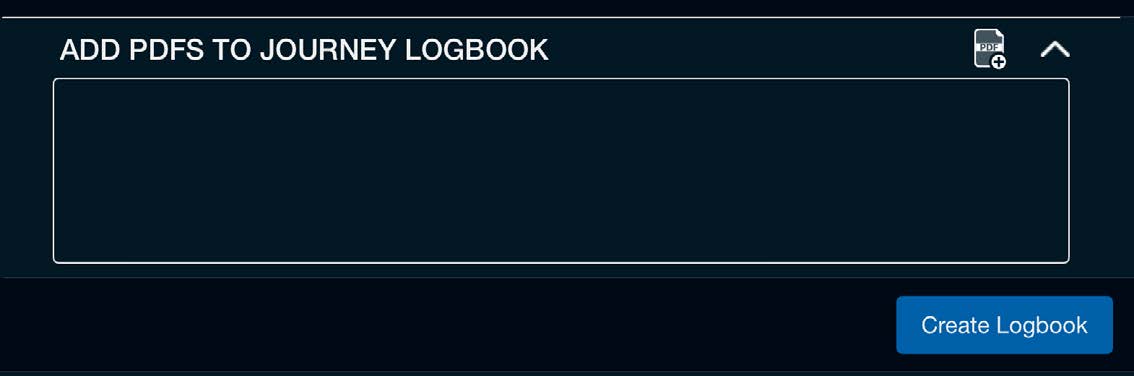
PDF documents can be added to the active Journey Logbook during a flight or anytime prior to closing it out.
All added PDF documents will show as a thumbnail within the Journey Logbook PDFs box.
Note: All attached PDF documents will be shown within the Journey Logbook Master Document PDF.
Selecting Preview will allow you to see the Journey Logbook as captured in PDF form, with the route, annotations, applicable tracks, checklist, attached photos, and entire flight plan used.
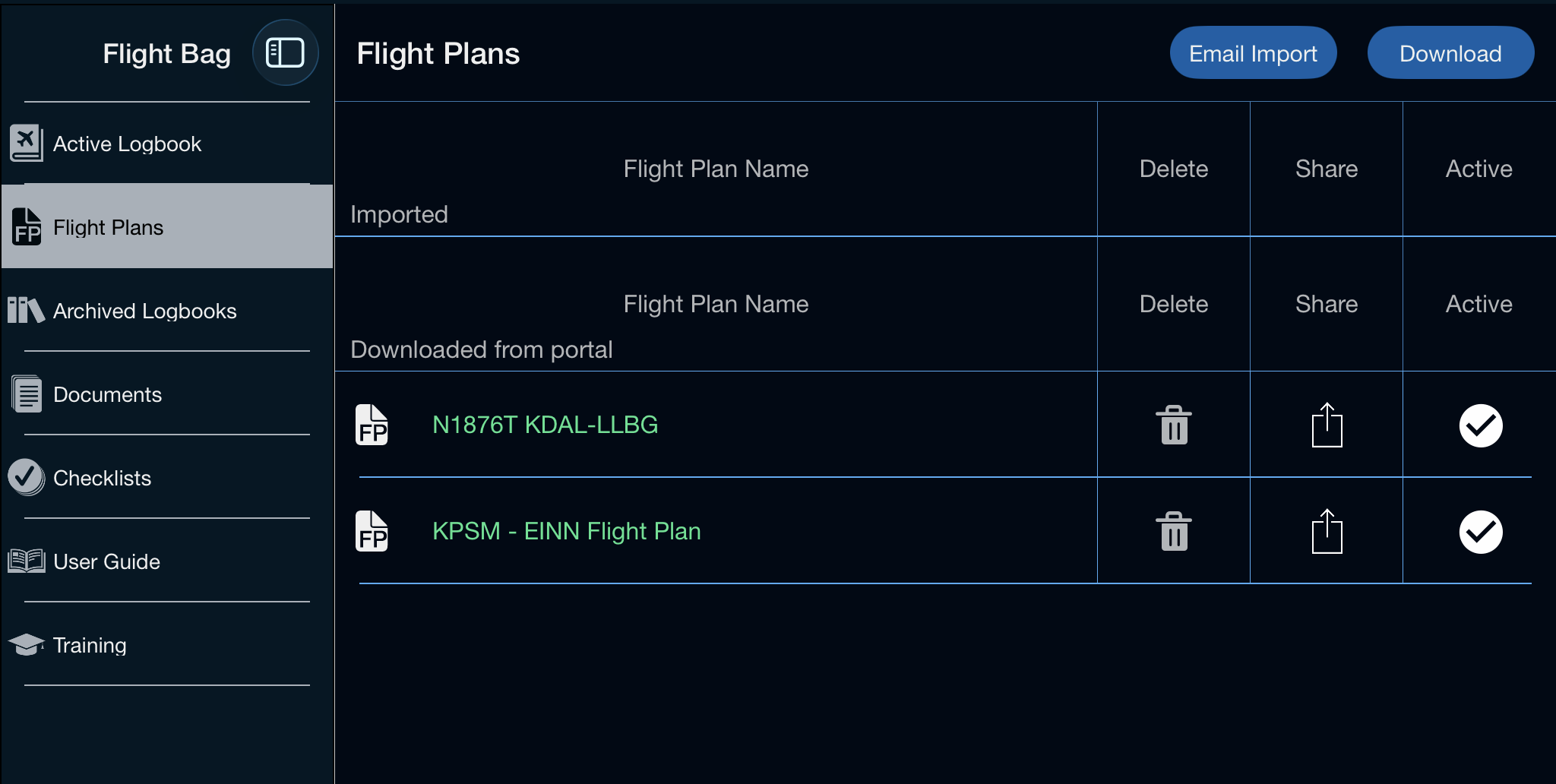
Allows you to download flight plans from your app portal, import flight plans from email, and view flight plans currently in the app. Flight plans within the app can be exported and deleted from the Flight Bag.
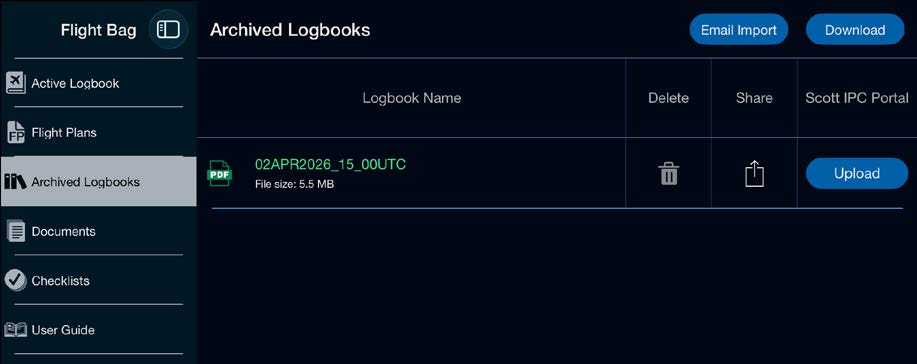
Previous flights' Journey Logbook Master Documents can be found here. After closing out a flight, you will find the completed Master Document here whether you choose to upload it to the portal or not.
The file can be viewed, exported, uploaded to the portal, or deleted from this screen. Previous Journey Logbooks uploaded to your portal can be downloaded with the Download button or imported via email with the Import From Email button.
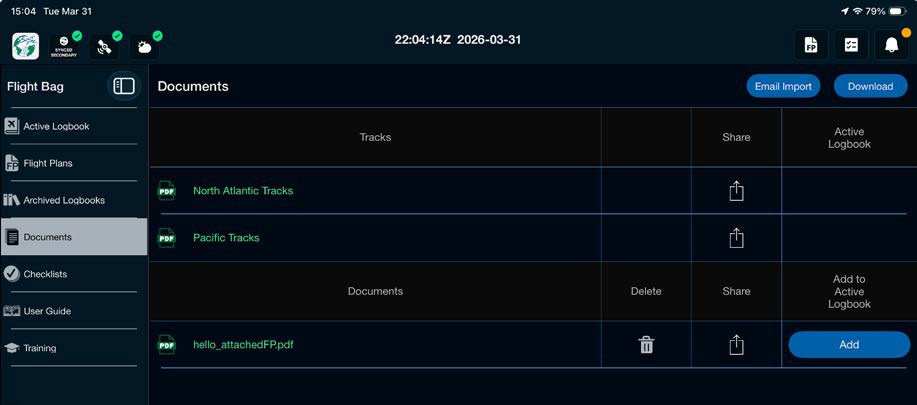
Any manuals or documents assigned from the portal, imported from email, or shared from other applications can be found here. To download a document from your portal, tap Download and select the document you wish to download into the Flight Bag. To import a document from email, select Import From Email and do the following:
Current track messages can also be viewed and exported in PDF form.
Note: Scott Plot® v3.0 and higher supports adding documents directly to the Active Logbook. Tap on the blue Add button in the Documents section and your PDF document will be saved to the Active Logbook PDF section.
The checklists section allows you to download any custom checklists created in the app that were saved to your app portal.
From the Checklists tab, select the Download button to view all saved checklists. Tap the cloud download icon to pull the checklist into the app. Once in the app, you will be able to choose the custom checklist from the Preflight Wizard checklists step or from the checklist drop-down in the Checklist/Flight Plan view.
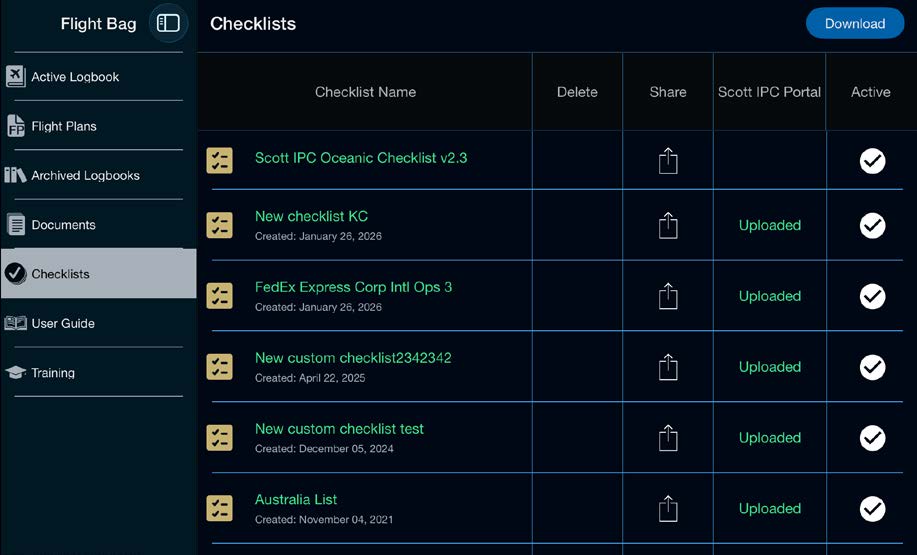
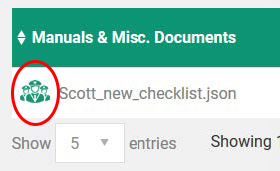
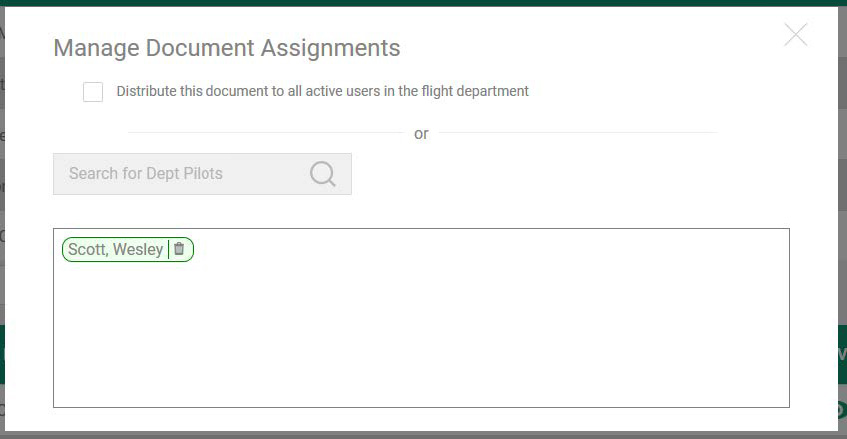
You can assign your checklist to other users within your flight department.
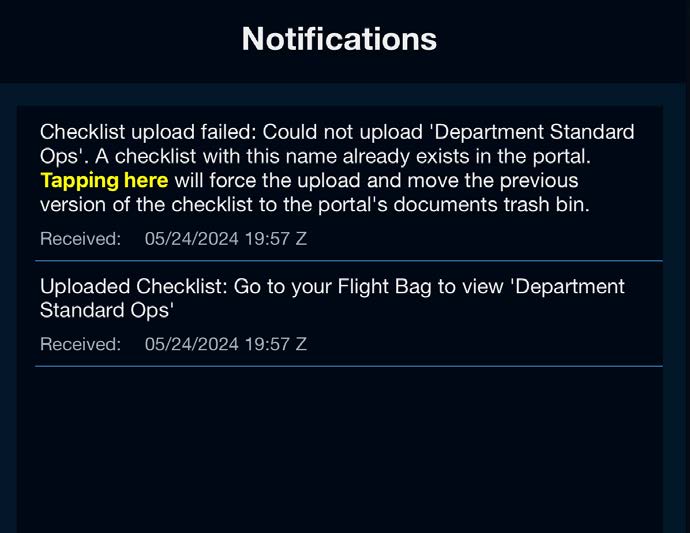
You can edit an existing checklist and save it to the portal with the same name. Once you finish your updates and select save, you will receive a notification.
Note: Checklists may be locked on the portal to prevent edits, and you may need to confirm your upload, so check the notification afterward.
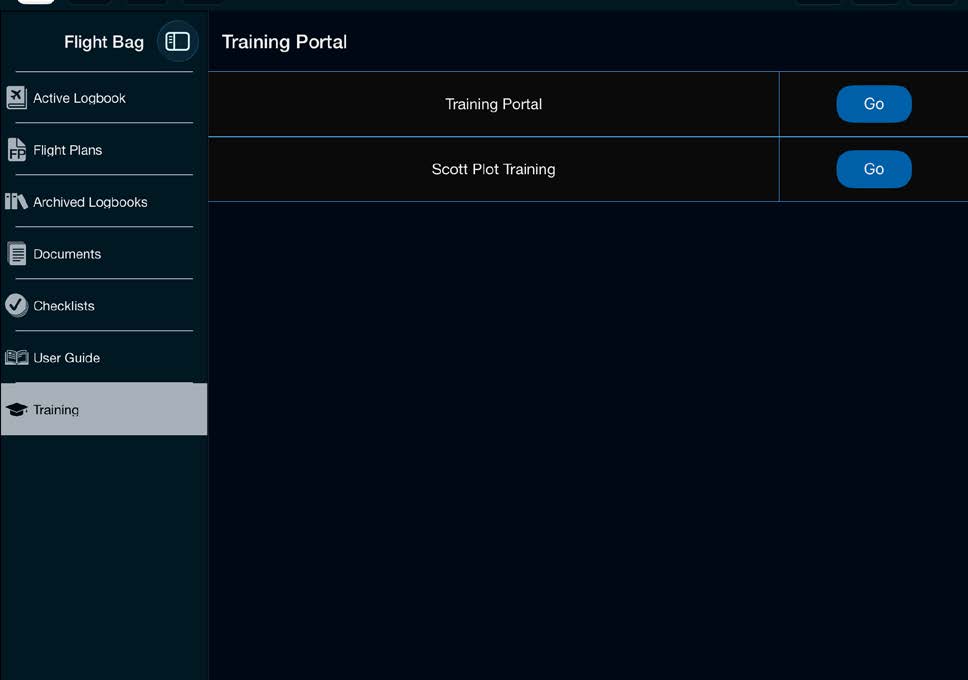
From the Training tab, you can quickly go to the Scott IPC client login page to access your assigned Scott IPC training, or you can access the Scott Plot training module.
Select the icon to expand or collapse the main menu.