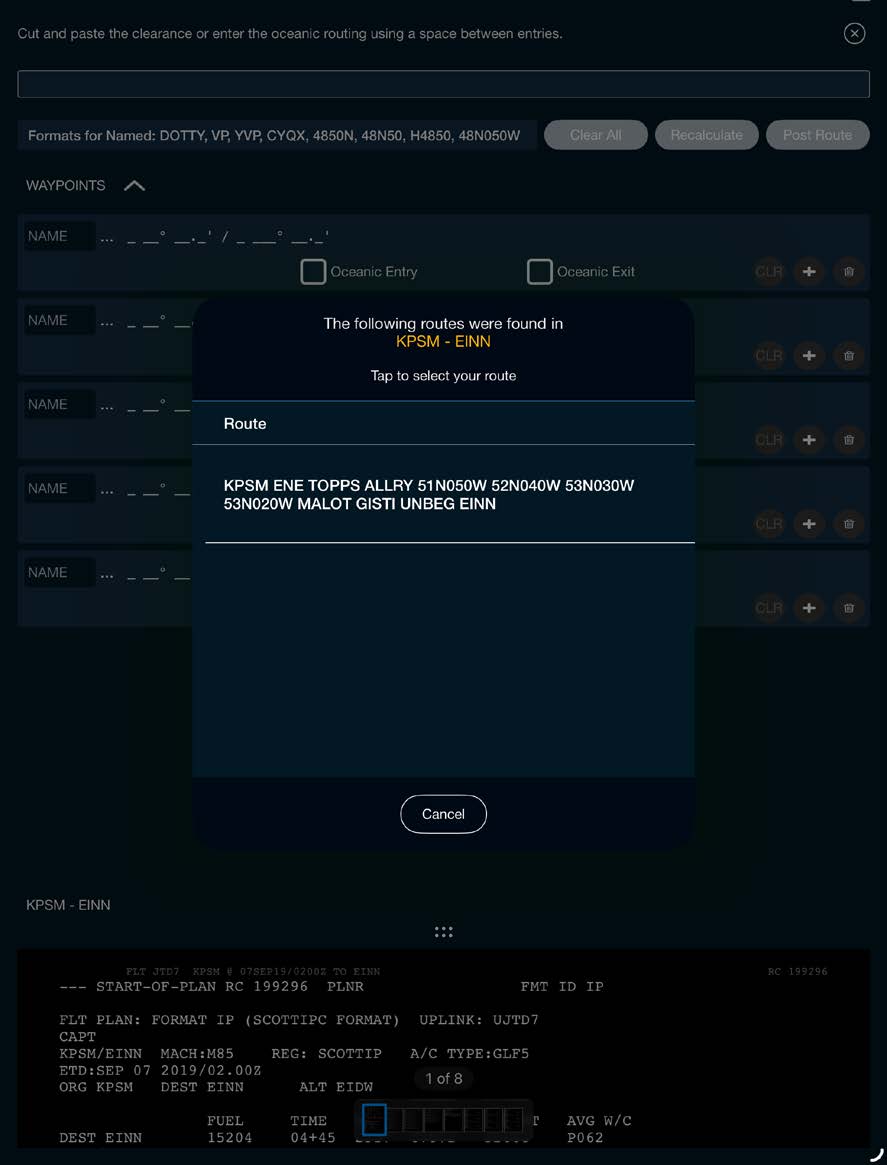
The system will read your confirmed document, identify the flight plan(s) found in the package, and then display each leg's route.
Note: If no route is displayed with a popup, ensure that a flight plan is selected on the Preflight Wizard.
Selecting a Parsed Route
Select the route the application finds and displays in the window. If multiple routings are found, they will be displayed based on their flight plan package position. Select the desired routing to be plotted.
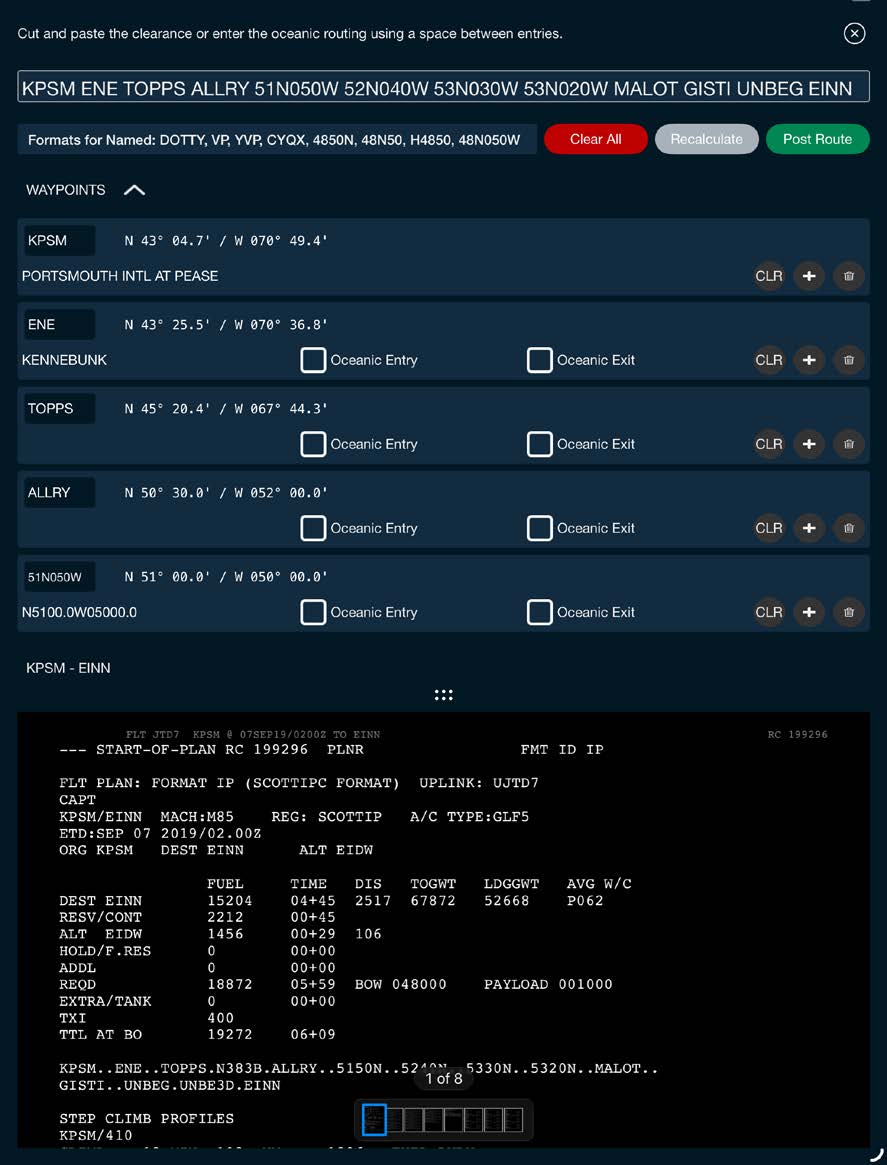
Verify the parsed route in the clearance box at the top of the screen against your flight plan.
Select the desired oceanic entry/exit point on the screen, or wait to do so during the next Preflight Wizard step.
Select Post Route to build the route on the chart.
Note: You can see your selected flight plan by pulling up on the flight plan bar at the bottom of the screen.
Manually Entering a Route
To manually enter a route, choose Cancel when the routing options are displayed.
Manually build the route by entering the waypoints and selecting them from the Select Waypoint box displayed, or enter the lat/long for each point along the route.
You can also manually enter or alter a route from the clearance box at the top of the screen. Copy and paste the routing from the flight plan or type out the desired route.
Editing a Route
To edit a route — delete or add points along the route — use the icons next to each point.
You may also delete or add points to/from the clearance box at the top of the screen.
After making desired changes, select Recalculate and then Post Route.
Note: You can expand an airway to view the waypoints within it by tapping on the green arrow for the desired airway.